If you’re wondering how to rent dedicated Rust server hosting in 2026, you’ve come to the right place. Renting a dedicated Rust server gives you full control over gameplay, mods, and player management while ensuring stable performance for your community. This guide walks you through every step—from choosing the right provider to configuring your server—so you can launch a seamless Rust experience.
Why Rent a Dedicated Rust Server Instead of Self-Hosting?
Self-hosting a Rust server from your home network might seem cost-effective at first, but it comes with severe limitations. Your upload speed, electricity costs, and hardware lifespan will all take a hit. More importantly, residential connections lack DDoS protection, meaning griefers can easily take your server offline.
When you rent dedicated Rust server hosting from a professional provider, you gain access to enterprise-grade infrastructure. At Nexus Games Rust hosting, every server runs on AMD Ryzen 9 7950X3D processors with 16 cores and 32 threads clocked above 5 GHz. This means your server can handle large player counts, complex plugin stacks, and intensive PvP battles without lag spikes.
Key Advantages of Dedicated Hosting
- Uptime Guarantee: Professional data centers maintain 99.9% uptime with redundant power and network infrastructure.
- DDoS Protection: Game-specific anti-DDoS filters automatically mitigate attacks without impacting legitimate players.
- Scalability: Upgrade RAM or CPU cores instantly through your control panel as your community grows.
- 24/7 Support: Expert technicians resolve server issues around the clock, so you never face downtime alone.
- NVMe Storage: Lightning-fast read/write speeds reduce map loading times and database queries.
Professional Rust hosting also includes automated backups, one-click mod installation, and optimized network routing. These features save dozens of hours compared to managing everything manually on a home server.

Step-by-Step Guide to Rent Dedicated Rust Server in 2026
Renting your Rust server takes less than ten minutes when you follow this streamlined process. We’ll cover provider selection, configuration options, and initial setup to get your server live quickly.
1. Choose the Right Hosting Provider
Not all game hosting companies offer true dedicated resources. Many budget providers oversell shared servers, leading to unpredictable performance during peak hours. When evaluating providers, verify these technical specifications:
| Specification | Minimum Requirement | Nexus Games Standard |
| Processor | Intel i7 9th gen or equivalent | AMD Ryzen 9 7950X3D (5+ GHz) |
| RAM Type | DDR4 2400 MHz | DDR5 ECC (error-correcting) |
| Storage | SATA SSD | NVMe Gen4 SSD |
| Network | 100 Mbps unmetered | 1 Gbps with anti-DDoS |
| Control Panel | Basic FTP access | Full management panel with mod browser |
Nexus Games meets or exceeds all these benchmarks across every plan. Our infrastructure uses KVM virtualization for VPS options, guaranteeing dedicated CPU threads and RAM allocation—no resource stealing from neighboring customers.
2. Select Your Server Configuration
Rust server requirements scale with player count and plugin complexity. Here’s a sizing guide based on real-world testing:
- 10–30 players: 4 GB RAM, 2 CPU cores—ideal for small friend groups or roleplay servers.
- 30–75 players: 8 GB RAM, 4 CPU cores—supports most popular plugin bundles and medium-sized maps.
- 75–150 players: 16 GB RAM, 6+ CPU cores—handles high-pop vanilla or modded servers with complex automation.
- 150+ players: 32 GB+ RAM, 8+ CPU cores—required for large-scale PvP servers or heavily modded environments.
Most providers recommend overshooting your current needs by 25% to account for plugin overhead and traffic spikes during wipe days. The Nexus Games panel lets you upgrade resources in real time without migrating your server files.
3. Complete the Order Process
Once you’ve selected your plan, the checkout process typically includes these steps:
- Choose your billing cycle (monthly, quarterly, or annual—annual saves up to 15%).
- Select server location closest to your player base for optimal latency.
- Add any optional extras (additional backup slots, premium support, custom subdomain).
- Complete payment via credit card, PayPal, or cryptocurrency.
After payment confirmation, your server provisioning begins immediately. Most hosts deploy within 5–15 minutes, though complex configurations may take up to an hour.
4. Access Your Control Panel
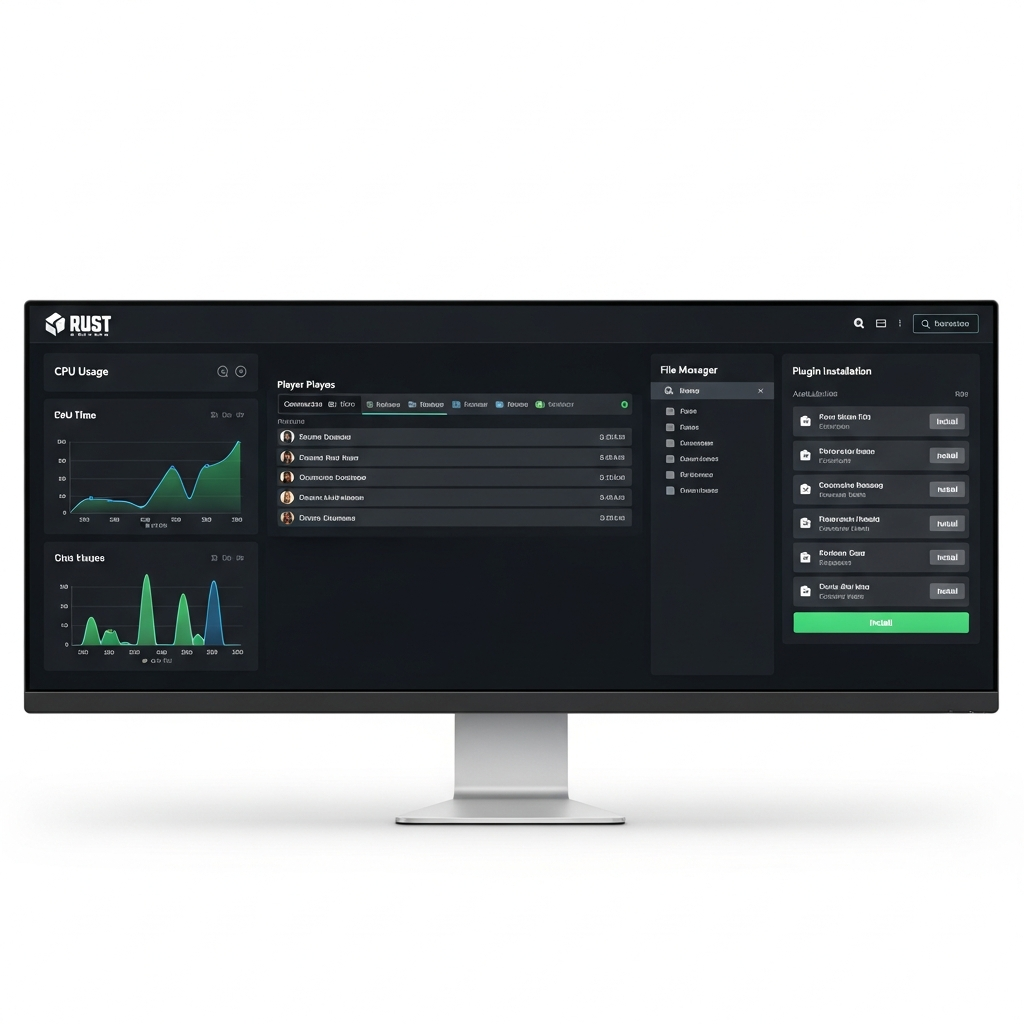
You’ll receive login credentials via email once provisioning completes. The Nexus Games control panel provides one-click access to:
- Server Console: Monitor real-time logs and execute admin commands without SSH.
- File Manager: Edit configuration files, upload plugins, and manage map seeds directly in your browser.
- Mod Installer: Browse thousands of Oxide/uMod plugins with automatic dependency resolution.
- Backup System: Schedule automatic backups and restore previous states in seconds.
- Startup Parameters: Adjust tickrate, world size, and performance settings without editing launch scripts.
The panel also displays real-time CPU, RAM, and network usage graphs, helping you identify performance bottlenecks before they impact gameplay.
Initial Server Configuration and Optimization
After accessing your control panel, configure these essential settings before inviting players. Proper initial setup prevents common issues like login loops, desync, and plugin conflicts.
Essential Server.cfg Settings
Your server.cfg file controls core behavior. Here’s a production-ready baseline configuration:
server.hostname "My Rust Server | 2x Gather | Monthly Wipe"
server.description "Friendly community server with active admins"
server.url "https://yourwebsite.com"
server.headerimage "https://yourwebsite.com/header.png"
server.maxplayers 100
server.worldsize 4000
server.seed 1234567
server.saveinterval 300
server.pve false
server.stability true
decay.scale 1.0
antihack.enabled true
antihack.admincheat true
Adjust server.maxplayers based on your RAM allocation. As a rule of thumb, allocate 80 MB of RAM per player slot plus 2 GB base overhead. Monitor your panel’s memory graphs during peak hours and upgrade if utilization exceeds 85%.
Plugin Installation Best Practices
The Oxide/uMod framework powers most Rust plugins. When you rent dedicated Rust server hosting with Nexus Games, Oxide comes pre-installed. To add plugins:
- Navigate to the Mod Installer tab in your control panel.
- Search for desired plugins (e.g., “Vanish”, “Kits”, “Remove Tool”).
- Click Install—dependencies automatically download.
- Restart your server to load new plugins.
- Configure plugin settings via the
/oxide/config/directory.
Avoid installing more than 30–40 plugins initially. Each plugin consumes CPU cycles and RAM. Popular heavy plugins like ZoneManager or DynamicPVP require careful optimization to prevent lag on high-pop servers.
Network and Performance Tuning
Rust’s networking can be finicky, especially on modded servers. Apply these optimizations in your startup parameters:
- +server.tickrate 30: Increases server update rate (default 10). Higher values improve hit registration but increase CPU load.
- +fps.limit 60: Caps server framerate to prevent runaway CPU usage.
- +gc.buffer 4096: Allocates more memory for garbage collection, reducing stutter.
- +server.netcache.maxentries 1000: Improves entity streaming for high-pop servers.
Monitor your console for “Too many entities” warnings. If you see these frequently, reduce your map size or limit deployable counts via plugins like Entity Limit.
Security Hardening
Protect your server from exploits and unauthorized access:
- Enable RCON authentication with a strong password (minimum 16 characters).
- Whitelist admin SteamIDs in
users.cfgrather than granting in-game. - Install BetterChat and AdminRadar for moderation tools.
- Configure automatic bans for common cheats via plugins like AntiCheatPlus.
- Review server logs daily for suspicious activity patterns.
The Nexus Games infrastructure includes game-layer DDoS protection that filters malicious traffic before it reaches your server instance, but application-level security remains your responsibility.
Advanced Rust Server Management Tips for 2026
Once your server is live and stable, these advanced techniques will help you retain players and build a thriving community.
Optimizing Wipe Schedules
Rust thrives on regular wipes that reset progression. Most servers follow these patterns:
- Forced Wipe: First Thursday of every month (mandated by Facepunch updates).
- BP Wipe: Every 1–3 months depending on server type (vanilla vs. modded).
- Map-Only Wipe: Weekly or biweekly for high-action servers.
Track your player retention rates through the first 72 hours post-wipe. If 60% of your playerbase drops off by day three, consider adjusting gather rates or adding mid-wipe events via plugins like Heli Signals or Supply Signal.
Integrating Discord Bots
Modern Rust servers rely heavily on Discord integration. The Discord Core plugin enables:
- Real-time chat sync between Discord and in-game.
- Server status embeds with player counts and uptime.
- Admin notifications for raids, helicopter events, and player reports.
- Automated ban appeals and ticket systems.
Nexus Games also offers dedicated Discord bot hosting, allowing you to run custom bots on the same infrastructure as your game servers for seamless integration.
Performance Monitoring and Troubleshooting
Use these console commands to diagnose performance issues:
perf 5         # Shows top resource-consuming entities
entity.debug_toggle  # Visualizes entity counts per grid
gc.collect     # Forces garbage collection to free memory
global.report  # Generates full performance report
If your server stutters despite adequate hardware, check for plugin conflicts using the oxide.unload PluginName command iteratively. Common culprits include poorly coded teleport plugins and overly complex loot tables.
The Nexus Games support team can analyze your server’s performance profiles remotely via the control panel. Submit a ticket with reproduction steps, and technicians will identify bottlenecks within 24 hours.
Conclusion
Learning how to rent dedicated Rust server hosting transforms your gaming experience from unpredictable lag to smooth, customizable gameplay. By choosing a provider with modern AMD Ryzen 9 7950X3D processors, DDR5 ECC memory, and comprehensive management tools, you ensure your community enjoys stable performance during every wipe cycle. Follow this guide’s configuration best practices, monitor resource usage proactively, and leverage professional support when needed—your players will thank you with long-term loyalty.
FAQ
What’s the minimum RAM needed to rent dedicated Rust server for 50 players?
For 50 players, allocate at least 8 GB of RAM to handle the base game plus moderate plugin usage. If you plan to install heavy mods like ZoneManager or custom monuments, upgrade to 12–16 GB. Nexus Games allows real-time RAM upgrades through the control panel without server migration, so you can start with 8 GB and scale up based on actual usage patterns observed in your performance graphs.
Can I switch server locations after renting a dedicated Rust server?
Yes, but the process requires migrating your server files to a new data center. Most providers including Nexus Games offer paid migration services where technicians handle the entire transfer process. Expect 2–4 hours of downtime during migration. To minimize disruption, schedule migrations during off-peak hours and notify your community in advance via Discord announcements.
How do I install custom maps on my rented Rust server?
Upload your custom map file (.map extension) via the File Manager in your control panel to the /server/my_server_identity/ directory. Then modify your server.cfg to reference the map by removing the server.seed line and adding server.level "Procedural Map" alongside server.worldsize matching your map’s dimensions. Restart the server and verify loading in the console. Nexus Games servers support maps up to 6000 size without performance degradation thanks to NVMe storage speeds.