Setting up a GMOD server Windows VPS is the perfect solution for administrators who want full control over their Garry’s Mod hosting environment. Whether you’re launching a DarkRP server, Sandbox mode, or a custom gamemode with advanced addons, a Windows VPS offers unmatched flexibility, root access, and the power to install any workshop content or plugin you need. This comprehensive guide will walk you through every step of creating, configuring, and optimizing your GMOD server on a Windows VPS in 2025.
Why Choose a Windows VPS for Your GMOD Server?
Garry’s Mod is one of the most versatile sandbox games, supporting hundreds of gamemodes and thousands of addons via the Steam Workshop. While shared hosting can be convenient, a GMOD server Windows VPS gives you the freedom to customize every aspect of your server environment, from operating system-level tweaks to advanced networking configurations.
Benefits of Windows VPS for GMOD Hosting
- Full Administrative Access: RDP (Remote Desktop Protocol) access lets you manage your server as if you were sitting in front of it, with full GUI support and Windows-native tools.
- Unlimited Addon and Mod Installation: Install any workshop collection, custom Lua scripts, or third-party plugins without restrictions.
- Dedicated Resources: With KVM virtualization, your VPS receives dedicated CPU cores, RAM, and storage—no sharing with other users.
- Scalability: Easily upgrade your VPS plan as your community grows, adding more RAM or CPU cores without migrating servers.
- Windows Compatibility: Run additional tools like RCON managers, web dashboards, or Discord bots directly on the same VPS.
At Nexus Games, our Windows VPS offerings are powered by AMD Ryzen 9 7950X3D processors (16 cores / 32 threads at up to 5.7 GHz), DDR5 ECC RAM (32–128 GB), and NVMe SSD storage, ensuring your GMOD server runs smoothly even with dozens of players and heavy workshop content loaded.
Minimum VPS Requirements for GMOD Server
| Component | Minimum | Recommended |
| CPU | 2 cores @ 3 GHz | 4+ cores AMD Ryzen 9 7950X3D |
| RAM | 4 GB | 8–16 GB DDR5 ECC |
| Storage | 20 GB SSD | 50+ GB NVMe SSD |
| Network | 100 Mbps | 1 Gbps with Anti-DDoS |
| OS | Windows Server 2019+ | Windows Server 2022 |
For a 20-player DarkRP server with moderate addons, we recommend at least 8 GB RAM and 4 CPU cores. If you’re planning a heavily modded server with 50+ addons and custom maps, consider 16 GB RAM or more.

Step-by-Step: Creating Your GMOD Server on Windows VPS
Once you’ve provisioned your Windows VPS (accessible via RDP), follow these steps to install and configure your GMOD server Windows VPS environment.
1. Connect to Your VPS via Remote Desktop
Open the Remote Desktop Connection application on your local machine (or use an RDP client like mRemoteNG). Enter your VPS IP address, username (usually Administrator), and the password provided by your hosting provider. Click Connect to establish the session.
2. Install SteamCMD on Windows
SteamCMD is the command-line tool for downloading and updating dedicated game servers. Download it directly from Valve:
- Open your browser inside the VPS and navigate to https://developer.valvesoftware.com/wiki/SteamCMD.
- Download the Windows version (
steamcmd.zip). - Extract the archive to a dedicated folder, for example
C:\SteamCMD\. - Run
steamcmd.exeto initialize and download updates.
Once SteamCMD finishes updating, you’re ready to install the GMOD dedicated server files.
3. Download Garry’s Mod Dedicated Server Files
Inside the SteamCMD console, execute the following commands to download the GMOD server:
login anonymous
force_install_dir C:\GMODServer\
app_update 4020 validate
quit
This will download the complete Garry’s Mod dedicated server to C:\GMODServer\. The validate flag ensures all files are intact. The process takes 5–15 minutes depending on your network speed.
4. Configure Server Startup Parameters
Create a batch script (start_gmod.bat) in C:\GMODServer\ with the following content:
@echo off
srcds.exe -console -game garrysmod +maxplayers 32 +map gm_flatgrass +sv_defaultgamemode "sandbox" +host_workshop_collection YOUR_COLLECTION_ID +sv_setsteamaccount YOUR_GSLT_TOKEN
Key Parameters Explained:
-console: Opens the server console for live monitoring and commands.+maxplayers 32: Sets the maximum player slots (adjust as needed).+map gm_flatgrass: Defines the starting map.+sv_defaultgamemode "sandbox": Sets the default gamemode (usedarkrp,murder, etc., if you have them installed).+host_workshop_collection YOUR_COLLECTION_ID: Automatically downloads and mounts a Steam Workshop collection on server start.+sv_setsteamaccount YOUR_GSLT_TOKEN: Registers your server with Steam’s master server list (obtain your token at https://steamcommunity.com/dev/managegameservers).
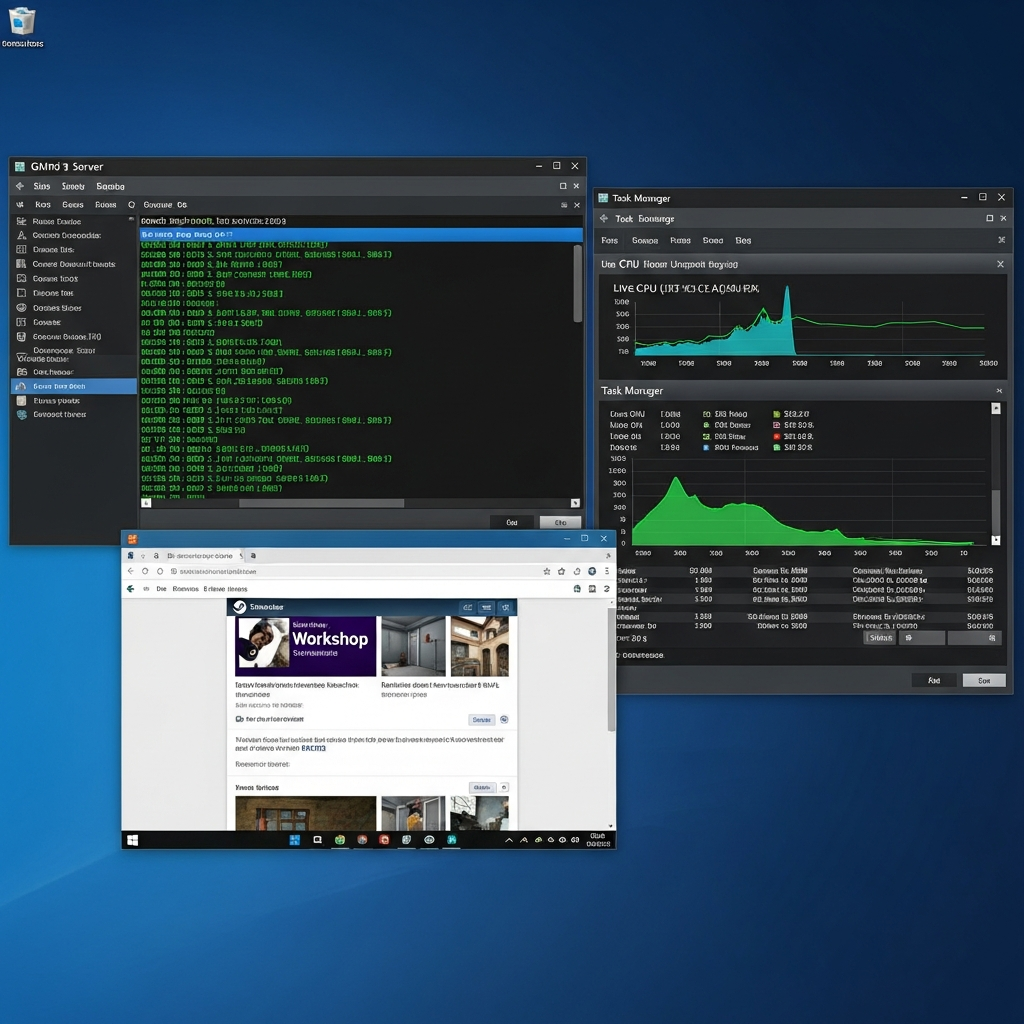
Double-click start_gmod.bat to launch your GMOD server. The console window will display initialization progress, map loading, and workshop content downloads.
5. Configure Firewall and Network Rules
Windows Firewall must allow inbound connections on the GMOD server port (default: 27015 UDP). Open Windows Defender Firewall with Advanced Security, create a new Inbound Rule, select Port, choose UDP, specify port 27015, and allow the connection for all profiles (Domain, Private, Public).
If your VPS provider offers DDoS protection, ensure the game port is whitelisted. Nexus Games VPS plans include game-optimized Anti-DDoS, automatically filtering malicious traffic without affecting legitimate players.
6. Install Addons and Workshop Content
For a GMOD server Windows VPS, you can install addons in two ways:
- Workshop Collections: Add the collection ID to your startup script (as shown above). The server auto-downloads content on boot.
- Manual Installation: Download addon folders from the Steam Workshop or third-party sites, then place them in
C:\GMODServer\garrysmod\addons\.
For gamemodes like DarkRP or TTT, download the gamemode folder (e.g., darkrp) and place it in C:\GMODServer\garrysmod\gamemodes\. Update your startup script to +sv_defaultgamemode "darkrp".
7. Configure server.cfg and Other Settings
Create or edit C:\GMODServer\garrysmod\cfg\server.cfg with your server settings:
hostname "My GMOD Server | Hosted on Nexus Games VPS"
sv_password ""
rcon_password "your_secure_rcon_password"
sv_lan 0
sv_region 0
sv_allowupload 1
sv_allowdownload 1
sv_timeout 60
net_maxfilesize 64
sv_max_queries_sec 5
sv_max_queries_window 60
Adjust sv_region for your geographic location (0 = US East, 1 = US West, 2 = South America, 3 = Europe, etc.). Set a strong rcon_password to prevent unauthorized admin access.
Advanced Configuration and Optimization Tips
Running a successful GMOD server Windows VPS requires more than just installation—you need to optimize performance, manage resources, and ensure stability for your community.
Performance Tuning for High Player Counts
GMOD servers can become CPU-intensive with many addons and players. Here are proven optimization techniques:
- Limit Addon Count: Each addon adds Lua scripts that execute on every server tick. Remove unused or redundant addons.
- Optimize Lua Scripts: Use profilers like
ulx profilerorgProfilerto identify performance bottlenecks in custom scripts. - Adjust Tickrate: The default tickrate is 66. Lowering it to 33 reduces CPU load but makes gameplay less responsive. Test what works best for your gamemode.
- Use FastDL or Workshop: Avoid forcing clients to download large files directly from your server. Use a FastDL server (external HTTP/HTTPS) or Steam Workshop for faster content delivery.
- Enable Multithreading: Add
-threads 4to your startup script to utilize multiple CPU cores (adjust the number to match your VPS plan).
Setting Up Automated Backups
Protect your server data with scheduled backups. Use Windows Task Scheduler to run a batch script that copies your garrysmod folder to a backup location:
@echo off
set SOURCE=C:\GMODServer\garrysmod
set DEST=D:\Backups\GMOD_%date:~-4,4%%date:~-10,2%%date:~-7,2%
xcopy %SOURCE% %DEST% /E /I /Y
Schedule this script to run daily at low-traffic hours (e.g., 4 AM). For off-site backups, use tools like Rclone to sync to cloud storage.
Implementing RCON Management
RCON (Remote Console) lets you execute server commands without RDP access. Tools like RustAdmin (compatible with Source games) or web-based panels provide a GUI for RCON management. Configure RCON in your server.cfg with a strong password, then connect using the tool of your choice on port 27015 (or your custom RCON port).
Running Multiple GMOD Servers on One VPS
With sufficient resources (16+ GB RAM, 8+ CPU cores), you can host multiple GMOD servers on a single GMOD server Windows VPS. Duplicate your server directory (e.g., C:\GMODServer2\), modify the startup script to use a different port (+port 27016), and adjust firewall rules accordingly. Nexus Games VPS plans with 64 GB or 128 GB DDR5 ECC RAM easily support 3–5 concurrent GMOD instances.
Monitoring and Logging
Use Windows Performance Monitor or third-party tools like PRTG Network Monitor to track CPU, RAM, disk I/O, and network usage. Enable detailed logging in GMOD by adding +log on +sv_logfile 1 to your startup script. Logs are saved to garrysmod\logs\ and help diagnose crashes, exploits, or performance issues.
Troubleshooting Common GMOD Server Issues
Even with a powerful GMOD server Windows VPS, you may encounter issues. Here are solutions to the most common problems:
Server Not Appearing in Server Browser
- Verify your Game Server Login Token (GSLT) is correctly set in the startup script. Tokens can be revoked if unused for 6 months—regenerate if necessary.
- Ensure
sv_lan 0is set inserver.cfg. - Check firewall rules allow inbound UDP traffic on your game port.
- Wait 5–10 minutes after server start for Steam master server registration to complete.
High CPU Usage or Lag Spikes
- Profile your addons to identify performance hogs. Remove or optimize heavy Lua scripts.
- Reduce
sv_maxrateandsv_minrateif bandwidth is limited. - Disable unnecessary entity limits (e.g.,
sbox_max*convars) if your gamemode doesn’t need them. - Upgrade your VPS plan to more CPU cores if sustained usage exceeds 80%.
Workshop Content Not Downloading
- Ensure the collection ID in your startup script is public and not unlisted/private.
- Verify the collection contains only GMOD addons (not other games).
- Increase
net_maxfilesizeinserver.cfgif addons exceed the default 64 MB limit. - Check your VPS has sufficient disk space—workshop content can consume 10+ GB.
Players Timing Out or Disconnecting
- Increase
sv_timeoutto 120 seconds for players with unstable connections. - Enable DDoS protection if your VPS is under attack. Nexus Games VPS plans include automatic game traffic filtering.
- Check your network bandwidth isn’t saturated—1 Gbps is recommended for 30+ players.
For persistent issues, consult the official GMOD wiki or community forums like FacePunch or Reddit’s r/gmod.
Security Best Practices for Your GMOD VPS
A public-facing GMOD server Windows VPS is a target for DDoS attacks, exploits, and unauthorized access. Implement these security measures:
- Use Strong Passwords: Set complex passwords for RDP, RCON, and any admin panels. Use a password manager.
- Change Default Ports: Move RDP from port 3389 to a custom port (e.g., 33890) to reduce automated attacks.
- Enable Two-Factor Authentication: If your VPS provider supports it, enable 2FA for RDP and control panel access.
- Install Antivirus: Windows Server benefits from real-time antivirus. Windows Defender is sufficient; avoid resource-heavy suites.
- Keep Software Updated: Regularly update Windows, SteamCMD, and GMOD server files. Enable automatic Windows updates for security patches.
- Restrict Admin Permissions: Use ULX, ServerGuard, or SAM admin systems with granular permissions. Avoid giving full admin to untrusted users.
- Monitor Logs: Regularly review server logs for suspicious activity (e.g., repeated failed RCON attempts, exploit attempts).
Nexus Games VPS plans include built-in Anti-DDoS protection tailored for game servers, filtering Layer 4 and Layer 7 attacks without manual intervention. If you host sensitive data (e.g., donation systems), consider isolating it on a separate subdomain or server.
In summary, deploying a GMOD server Windows VPS in 2025 offers unparalleled control, performance, and scalability for Garry’s Mod communities of all sizes. With the right hardware—like the AMD Ryzen 9 7950X3D CPUs and DDR5 ECC RAM available in Nexus Games VPS offerings—combined with proper configuration and optimization, you can deliver a lag-free, feature-rich experience that keeps players engaged. Whether you’re running a casual sandbox server or a competitive DarkRP community with 50+ addons, a Windows VPS provides the foundation for growth and customization that shared hosting simply cannot match.
FAQ
How much RAM do I need for a GMOD server on a Windows VPS?
For a basic 10–20 player server with minimal addons, 4–6 GB RAM is sufficient. For DarkRP or heavily modded servers with 30+ players, we recommend 8–16 GB DDR5 ECC RAM. Larger communities (50+ slots, 100+ addons) should consider 32 GB or more. Nexus Games VPS plans scale from 8 GB to 128 GB to match your needs.
Can I switch from a GMOD game server to a Windows VPS without losing data?
Yes. Back up your garrysmod folder (data, addons, configs) via FTP or your existing panel, then upload it to your new Windows VPS in the appropriate directory. Update your startup script with the same parameters, and your server will resume with all data intact. If migrating from Nexus Games game hosting to a VPS, contact support for migration assistance.
How do I reduce lag on my GMOD server Windows VPS?
Optimize Lua scripts with profilers, limit addon count, use FastDL or Workshop for content delivery, adjust tickrate if needed, and ensure your VPS has adequate CPU cores and RAM. Enable multithreading with -threads in your startup script. If lag persists, upgrade to a higher-tier VPS plan with more dedicated resources, such as those powered by AMD Ryzen 9 7950X3D processors at Nexus Games.