Launching an ARK Ascended cluster is the ideal solution for players who want to connect multiple maps, share character progression, and create a seamless cross-server experience in ARK: Survival Ascended. Whether you’re building a private network for friends or managing a public community, understanding cluster architecture, configuration, and hardware requirements is essential to deliver smooth gameplay across The Island, Scorched Earth, and future expansions.
Understanding ARK Ascended Cluster Architecture
An ARK Ascended cluster allows players to transfer their characters, items, and dinosaurs between multiple server instances running different maps. Unlike standalone servers, clusters rely on shared storage folders where upload data is synchronized across all nodes. This architecture requires careful planning to ensure data consistency, prevent duplication exploits, and maintain performance across all maps.
At Nexus Games, our ARK: Survival Ascended hosting leverages AMD Ryzen 9 7950X3D processors (16 cores / 32 threads, up to 5 GHz) paired with DDR5 ECC RAM (32–128 GB) and NVMe SSD storage. This hardware foundation ensures sub-millisecond read/write speeds for cluster folders, critical when players transfer large inventories or high-level dinos between maps. The 1 Gbps network guarantees instant synchronization between cluster nodes, even under heavy player load.
Cluster Folder Structure and Data Flow
ARK Ascended clusters use a designated folder path that all servers in the network must access. When a player uploads at an obelisk or supply drop, their character file, inventory data, and creature metadata are written to this shared directory. The destination server then reads and imports this data upon player login, completing the transfer.
/ShooterGame/Saved/clusters/YourClusterID/Each server in your cluster must point to this exact path via the -clusterid=YourClusterID launch parameter. Consistency is critical: mismatched cluster IDs or folder permissions will prevent transfers and corrupt save files. Our Nexus Games panel automates this configuration, pre-creating cluster directories with correct permissions and generating unique cluster IDs to avoid conflicts.
Hardware Requirements for Multi-Map Clusters
Running a multi-map ARK Ascended cluster demands significantly more resources than a single server. Each map instance (The Island, Scorched Earth, Aberration, etc.) runs as a separate process with its own RAM allocation, CPU threads, and disk I/O requirements. A typical two-map cluster with 20-slot servers requires:
- CPU: 8+ dedicated threads (4 per map minimum)
- RAM: 32 GB minimum (16 GB per map, plus 4–8 GB OS overhead)
- Storage: 100+ GB NVMe SSD (40–50 GB per map, plus mods/saves)
- Network: 1 Gbps symmetrical for real-time cluster sync
The Ryzen 9 7950X3D’s 3D V-Cache technology dramatically improves ARK’s single-threaded performance, reducing tick lag during complex physics calculations (structure loading, large dino herds). DDR5 ECC RAM prevents memory corruption in long-running server processes, essential for clusters that run 24/7 without restarts.
Step-by-Step Cluster Configuration Guide
Configuring your ARK Ascended cluster involves three main phases: creating the cluster infrastructure, configuring individual map servers, and testing cross-server transfers. This guide assumes you’re using the Nexus Games panel, which streamlines many manual steps through automation.
Phase 1: Creating the Cluster Infrastructure
Start by defining your cluster scope. Will you run two maps, three, or the full lineup as expansions release? Each additional map increases resource demand linearly. For a starter cluster (The Island + Scorched Earth), allocate 32 GB RAM and 8 CPU threads minimum.
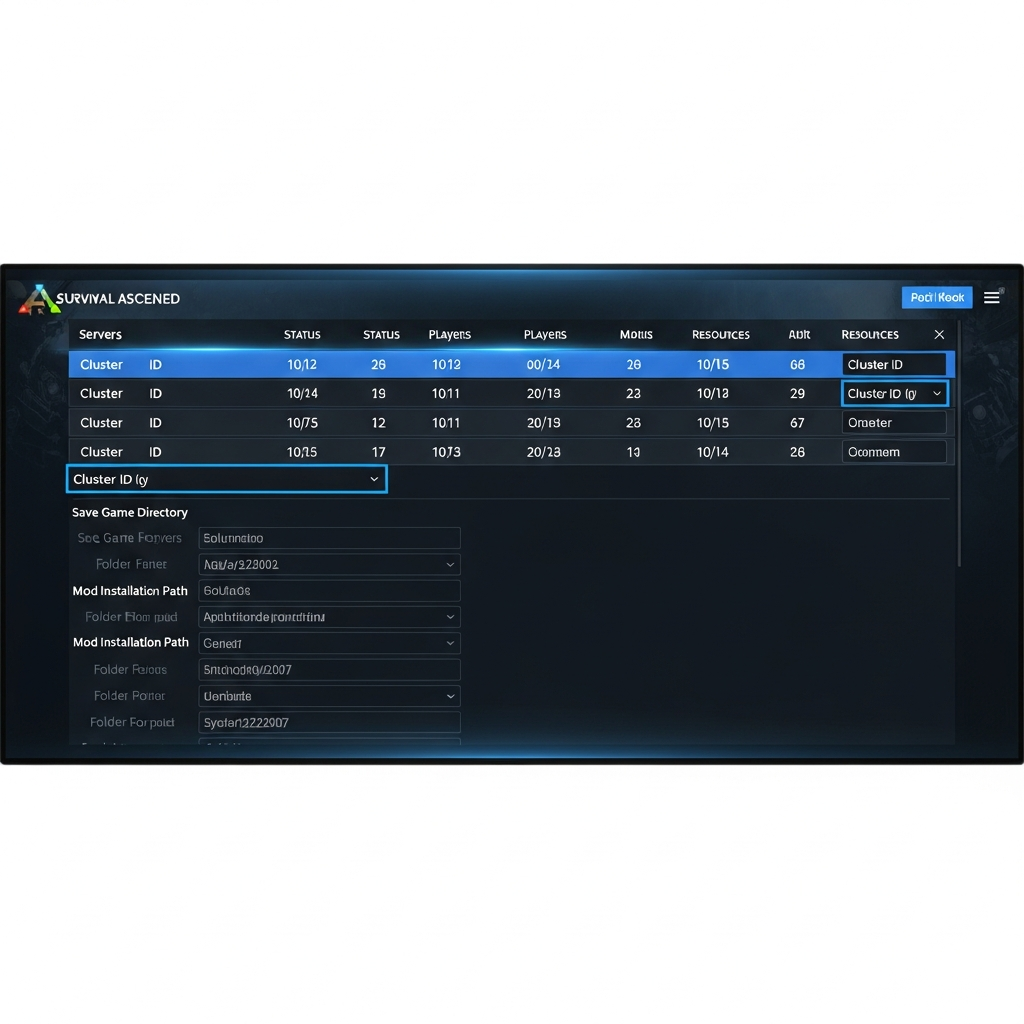
In the Nexus Games panel, navigate to your ARK: Survival Ascended service and access the Cluster Manager tool. Click “Create New Cluster” and assign a unique alphanumeric ID (e.g., NexusCluster2025). This ID becomes your -clusterid parameter and must remain consistent across all servers. The panel automatically provisions the shared storage directory and sets CHMOD permissions to 755, ensuring all server processes can read/write transfer data.
Phase 2: Configuring Individual Map Servers
Each map in your cluster requires its own server instance. From the panel dashboard, create a new ARK Ascended server for each map you want to include. During setup:
- Select the desired map (The Island, Scorched Earth, etc.) from the dropdown
- Allocate resources: 16 GB RAM and 4 threads minimum per server
- In the Startup Parameters section, add:
-clusterid=YourClusterID -ClusterDirOverride="/path/to/cluster/" - Enable CrossARKAllowForeignDinoDownloads=true in GameUserSettings.ini to permit creature transfers
- Set NoTransferFromFiltering=false to allow item transfers between maps
The Nexus Games panel auto-populates the cluster directory path based on your Cluster Manager settings, eliminating manual path errors. For advanced users, you can customize transfer restrictions per map by editing the ConfigOverrideItemMaxQuantity arrays in Game.ini to limit explosive/blueprint transfers.
Phase 3: Testing Cross-Server Transfers
After launching all cluster servers, join the first map and create a test character. Gather basic resources, tame a low-level creature, and travel to an obelisk or supply drop. Access the terminal and select “Upload Survivor” or “Upload Creature.” The UI should display your cluster ID—if it shows “No Cluster,” your -clusterid parameters are mismatched.
Disconnect from the server and join the second map in your cluster. At spawn, you’ll see an “Download Survivor” option in the respawn menu. Select it to retrieve your character. Check inventory and dino uploads via the obelisk terminal. If transfers fail, verify:
- All servers use identical
-clusteridvalues - Cluster folder permissions are 755 (not 700 or 644)
- No firewall rules block inter-server file operations
PreventDownloadSurvivors=falsein GameUserSettings.ini
The Nexus Games support team can diagnose cluster sync issues via live log analysis, checking for file lock conflicts or permission errors that prevent transfer data from writing correctly.

Advanced Cluster Management and Optimization
Once your basic ARK Ascended cluster is operational, optimize performance and security through advanced configuration, automated backups, and rate adjustments that balance cross-server economy.
Cluster-Wide Rate Balancing
Players transferring between maps can exploit rate differences—breeding on a high-rate map, then moving matured dinos to a progression server. To maintain balance, standardize core rates across all cluster nodes:
XPMultiplier=1.5
TamingSpeedMultiplier=3.0
HarvestAmountMultiplier=2.0
MatingIntervalMultiplier=0.5
Add these lines to the [/Script/ShooterGame.ShooterGameMode] section in GameUserSettings.ini for each server. For asymmetric clusters (PvE + PvP maps), consider disabling transfers from PvE to PvP via PreventUploadSurvivors=true on PvE nodes, forcing players to start fresh on competitive maps.
Automated Backup and Disaster Recovery
Cluster corruption can cascade—if one map’s save file becomes unreadable, it can block transfers for the entire network. Implement automated backups every 4 hours using the Nexus Games panel’s Scheduled Tasks feature. Configure the backup script to:
- Save all active map instances simultaneously (prevents mid-transfer corruption)
- Copy cluster folder contents to versioned archives
- Rotate backups: keep 24 hours (6 snapshots), 7 days (daily), 4 weeks (weekly)
- Store offsite backups to separate storage nodes (built-in with Nexus infrastructure)
In disaster scenarios, restore all cluster servers to the same backup timestamp. Restoring maps from different time points creates data mismatches—players may lose transfers completed between backup windows.
Mod Synchronization Across Cluster Maps
ARK Ascended supports mods via CurseForge, and cluster servers must run identical mod lists to prevent item/creature ID conflicts. If Map A uses a custom dino mod and Map B doesn’t, transferring that creature corrupts the upload file.
The Nexus Games panel includes a Cluster Mod Manager that pushes mod lists to all servers simultaneously. When updating mods:
- Stop all cluster servers before pushing mod updates
- Verify mod versions match exactly (automatic with panel sync)
- Restart servers in sequence: primary map first, then secondaries
- Test transfers post-update to confirm no item loss or corruption
For modded items with high transfer potential (custom armor, weapons), add ConfigOverrideItemMaxQuantity entries in Game.ini to prevent economy breaking through mass transfers.
Performance Monitoring and Scaling
Monitor cluster performance via the panel’s real-time metrics dashboard. Key indicators:
| Metric | Healthy Range | Action Required |
| CPU Usage per Map | 40–70% | >80% = add threads or reduce player slots |
| RAM Usage per Map | 60–80% allocated | >90% = increase allocation or optimize save files |
| Cluster Folder I/O | <5 ms latency | >10 ms = check disk health, move to faster NVMe |
| Transfer Success Rate | >99% | <95% = investigate permission/sync errors |
When a map consistently hits resource limits, scale vertically (upgrade to 24 GB RAM, 6 threads) or horizontally (move that map to a dedicated server instance). The Nexus Games infrastructure allows seamless migration—our team handles file transfers and configuration updates, minimizing downtime to under 5 minutes.
Security and Anti-Cheat in Clustered Environments
Clusters amplify duplication exploits—players can upload items, force-crash the destination server, and retrieve duplicated goods from backup files. Mitigation strategies:
- BattlEye: Enable on all cluster nodes (required for official-rate servers)
- Admin Logging: Track all obelisk interactions via
ServerAdminLog - Upload Cooldowns: Set
UploadCooldownSeconds=300to limit rapid transfers - Tribe Limits: Restrict tribe size to prevent coordinated exploit attempts
The Nexus Games Game Anti-DDoS system filters L7 attacks targeting transfer endpoints, preventing malicious actors from flooding cluster directories with fake upload packets.
Conclusion
Launching an ARK Ascended cluster transforms isolated survival experiences into interconnected adventures where players freely explore all maps without losing progress. By leveraging high-performance hardware like the AMD Ryzen 9 7950X3D, configuring robust cluster architectures, and implementing automated management tools, you create a seamless network that scales with your community’s growth. Nexus Games ARK hosting provides the infrastructure, support, and panel automation to simplify every step—from initial cluster provisioning to long-term performance optimization.
FAQ
Can I add new maps to an existing ARK Ascended cluster without wiping progress?
Yes. Simply create a new server instance with the desired map, configure it with your existing -clusterid parameter, and point it to the same cluster folder. Players can immediately transfer to the new map while retaining all characters, items, and creatures from other cluster servers. No wipes or data loss occur when expanding clusters.
How do I prevent players from transferring overpowered items between PvE and PvP maps?
Set PreventUploadItems=true on your PvE server’s GameUserSettings.ini to block item uploads entirely, or use ConfigOverrideItemMaxQuantity arrays in Game.ini to whitelist specific items. Alternatively, run separate cluster IDs for PvE and PvP networks—players cannot transfer between clusters with different IDs.
What causes “Failed to download survivor” errors in ARK Ascended clusters?
This error typically results from mismatched -clusterid parameters, incorrect folder permissions (should be 755), or file locks from simultaneous write operations. Verify all servers use identical cluster IDs, check that your hosting user owns the cluster directory, and ensure no backup scripts are running during transfer attempts. The Nexus Games support team can diagnose these issues via live log analysis.