Looking for the best VPS Pterodactyl game server hosting in 2025? Pterodactyl Panel has become the industry standard for managing game servers, offering unparalleled flexibility, control, and automation. Whether you’re hosting Minecraft, Rust, ARK, or any multiplayer game, combining a high-performance VPS with Pterodactyl gives you complete infrastructure control. This guide walks you through everything you need to know—from understanding Pterodactyl’s architecture to choosing the right VPS configuration and optimizing your setup for maximum performance and reliability.
What Is Pterodactyl and Why Use It for Game Server Hosting?
Pterodactyl is an open-source game server management panel built on modern web technologies. Unlike traditional control panels, Pterodactyl is designed from the ground up for containerized game server environments using Docker. This architecture delivers isolation, security, and resource efficiency that legacy panels simply can’t match.
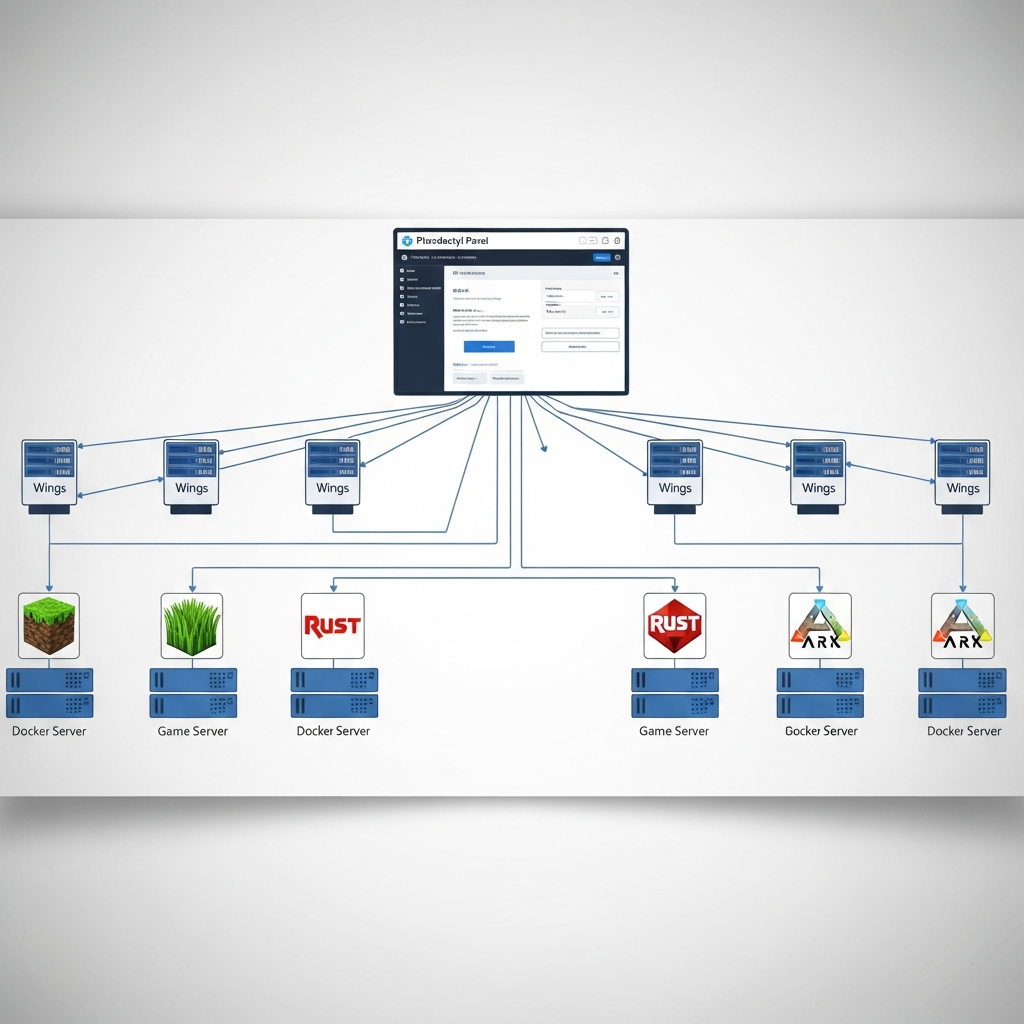
The panel separates into two core components: the Panel (web interface) and the Wings (daemon that runs on each server node). This decoupled architecture allows you to manage dozens or hundreds of game servers across multiple physical machines from a single dashboard. For hosting providers and gaming communities alike, this scalability is transformative.
Key advantages include automated backups, user permission systems, SFTP file access, real-time console output, scheduled tasks, and a rich API for custom integrations. Pterodactyl supports virtually every popular game through its “egg” system—pre-configured templates that handle installation, updates, and configuration automatically.
Who Benefits Most from VPS Pterodactyl Hosting?
While shared game hosting works for casual players, serious community owners, developers, and server networks need the control and resources only a VPS provides. With a VPS Pterodactyl game server setup, you get:
- Dedicated resources: No CPU throttling or RAM limits imposed by neighbors on shared infrastructure
- Root access: Install custom software, modify kernel parameters, configure firewalls exactly how you need
- Multi-game hosting: Run Minecraft, Rust, Valheim, and Discord bots on the same VPS
- Full control: Choose your Linux distribution, Docker version, and Pterodactyl configuration
- Scalability: Upgrade CPU cores, RAM, and storage without migrating to a new platform
At Nexus Games, our VPS solutions leverage KVM virtualization for true resource dedication. Every VPS runs on AMD Ryzen 9 7950X3D processors (16 cores, 32 threads, up to 5.7 GHz boost) with DDR5 ECC memory and NVMe SSDs. This hardware foundation ensures your Pterodactyl instance handles dozens of concurrent game servers without performance degradation.

VPS Requirements for Optimal Pterodactyl Performance
Not all VPS configurations perform equally when running Pterodactyl and game servers. Understanding resource requirements prevents bottlenecks and ensures smooth gameplay for your community.
Minimum Hardware Specifications
For a basic Pterodactyl setup hosting 1-3 small game servers (like vanilla Minecraft or Valheim), you’ll need:
- CPU: 2 dedicated cores minimum (4+ recommended for modded games)
- RAM: 4 GB minimum for the panel and one game server; 8-16 GB for multiple servers
- Storage: 40 GB NVMe SSD minimum; 80-120 GB for multiple games with mods
- Network: 1 Gbps uplink with unmetered or high-bandwidth allocation
Recommended Production Configuration
For serious hosting—multiple modded servers, large player counts, or community networks—scale to:
| Component | Specification | Reason |
| CPU | 6-8 cores, 5+ GHz | Game servers are single-threaded; high clock speed is critical |
| RAM | 32-64 GB DDR5 ECC | Modded servers (ARK, modded Minecraft) consume 8-16 GB each |
| Storage | 200+ GB NVMe SSD | Game files, backups, databases, and Docker images require fast I/O |
| Network | 1 Gbps, DDoS protection | Prevents downtime from attacks; supports high player concurrency |
Our Pterodactyl-optimized VPS packages come pre-configured with these specifications and include automated Pterodactyl installation through the Nexus Games panel. This eliminates the complex manual setup process entirely.
KVM Virtualization: The Only Choice for Game Hosting
Virtualization technology matters enormously for game server performance. Avoid OpenVZ or shared-kernel virtualization—they introduce unpredictable latency and resource contention. KVM (Kernel-based Virtual Machine) provides true hardware virtualization, giving your VPS dedicated CPU cycles, RAM, and I/O bandwidth without interference from other tenants.
All Nexus Games VPS instances use KVM exclusively. You get dedicated resources measured in real cores and gigabytes, not artificial “vCPU” units that share physical hardware unpredictably.
Step-by-Step: Installing and Configuring Pterodactyl on Your VPS
Manual Pterodactyl installation requires Linux expertise, but understanding the process helps you troubleshoot and customize your setup. Here’s the complete workflow for Debian 11/12 or Ubuntu 22.04 LTS.
Phase 1: Prepare Your Linux VPS
Start with a fresh VPS installation. Update packages and install dependencies:
apt update && apt upgrade -y
apt install -y software-properties-common curl apt-transport-https ca-certificates gnupg
Install Docker using the official repository:
curl -fsSL https://download.docker.com/linux/debian/gpg | gpg --dearmor -o /usr/share/keyrings/docker-archive-keyring.gpg
echo "deb [arch=amd64 signed-by=/usr/share/keyrings/docker-archive-keyring.gpg] https://download.docker.com/linux/debian $(lsb_release -cs) stable" | tee /etc/apt/sources.list.d/docker.list
apt update
apt install -y docker-ce docker-ce-cli containerd.io
systemctl enable --now docker
Phase 2: Install Panel Components
The Panel requires PHP 8.1+, MariaDB, Nginx/Apache, and Redis. Install the stack:
apt install -y php8.1 php8.1-{cli,gd,mysql,pdo,mbstring,tokenizer,bcmath,xml,fpm,curl,zip} mariadb-server nginx redis-server
mysql_secure_installation
Create a database for Pterodactyl:
mysql -u root -p
CREATE DATABASE panel;
CREATE USER 'pterodactyl'@'127.0.0.1' IDENTIFIED BY 'yourSecurePasswordHere';
GRANT ALL PRIVILEGES ON panel.* TO 'pterodactyl'@'127.0.0.1';
FLUSH PRIVILEGES;
EXIT;
Download and install the Panel:
mkdir -p /var/www/pterodactyl
cd /var/www/pterodactyl
curl -Lo panel.tar.gz https://github.com/pterodactyl/panel/releases/latest/download/panel.tar.gz
tar -xzvf panel.tar.gz
chmod -R 755 storage/* bootstrap/cache/
Install Composer dependencies and configure the environment:
curl -sS https://getcomposer.org/installer | php -- --install-dir=/usr/local/bin --filename=composer
composer install --no-dev --optimize-autoloader
php artisan key:generate --force
php artisan p:environment:setup
php artisan p:environment:database
php artisan migrate --seed --force
php artisan p:user:make
Phase 3: Configure Nginx and SSL
Create an Nginx server block for the Panel (replace panel.yourdomain.com with your actual domain):
nano /etc/nginx/sites-available/pterodactyl.conf
Paste this configuration:
server {
    listen 80;
    server_name panel.yourdomain.com;
    return 301 https://$server_name$request_uri;
}

server {
    listen 443 ssl http2;
    server_name panel.yourdomain.com;

    root /var/www/pterodactyl/public;
    index index.php;

    ssl_certificate /etc/letsencrypt/live/panel.yourdomain.com/fullchain.pem;
    ssl_certificate_key /etc/letsencrypt/live/panel.yourdomain.com/privkey.pem;

    location / {
        try_files $uri $uri/ /index.php?$query_string;
    }

    location ~ \.php$ {
        include snippets/fastcgi-php.conf;
        fastcgi_pass unix:/var/run/php/php8.1-fpm.sock;
    }
}
Enable the configuration and install Let’s Encrypt SSL:
ln -s /etc/nginx/sites-available/pterodactyl.conf /etc/nginx/sites-enabled/
apt install -y certbot python3-certbot-nginx
certbot --nginx -d panel.yourdomain.com
systemctl restart nginx
Phase 4: Install Wings (Node Daemon)
Wings runs on each physical server that hosts game containers. Install it on your VPS:
mkdir -p /etc/pterodactyl
curl -L -o /usr/local/bin/wings "https://github.com/pterodactyl/wings/releases/latest/download/wings_linux_amd64"
chmod u+x /usr/local/bin/wings
In the Pterodactyl Panel web interface, navigate to Admin → Nodes → Create New. After creating the node, copy the auto-generated configuration. Save it to:
nano /etc/pterodactyl/config.yml
Create a systemd service for Wings:
nano /etc/systemd/system/wings.service
Paste:
[Unit]
Description=Pterodactyl Wings Daemon
After=docker.service
Requires=docker.service
PartOf=docker.service

[Service]
User=root
WorkingDirectory=/etc/pterodactyl
LimitNOFILE=4096
PIDFile=/var/run/wings/daemon.pid
ExecStart=/usr/local/bin/wings
Restart=on-failure
StartLimitInterval=180
StartLimitBurst=30
RestartSec=5s

[Install]
WantedBy=multi-user.target
Enable and start Wings:
systemctl enable --now wings
Simplified Installation via Nexus Games Panel
While manual installation provides deep understanding, Nexus Games offers one-click Pterodactyl deployment directly from our VPS management panel. Simply select “Pterodactyl VPS” when ordering, and we handle the entire installation—Panel, Wings, SSL certificates, firewall configuration, and DDoS protection—automatically. You receive login credentials and can start deploying game servers within minutes.
Deploying and Managing Game Servers in Pterodactyl
With Pterodactyl installed, deploying game servers becomes remarkably simple. The egg system automates nearly everything—from downloading server files to generating startup scripts.
Installing Your First Game Server
In the Panel, navigate to Admin → Servers → Create New. You’ll configure:
- Server Name: Identifiable label for your server
- Owner: The user account that controls this server
- Node: Which physical server (Wings instance) will host it
- Egg: Pre-configured template (Minecraft Java, Rust, ARK, etc.)
- Resource Allocation: RAM, CPU cores, disk space, network ports
For example, to create a modded Minecraft server:
- Select the Minecraft Java egg (or Paper, Fabric, Forge variants)
- Allocate 8 GB RAM for typical modpacks (FTB, ATM, Enigmatica)
- Assign 4 CPU cores
- Set disk space to 20-40 GB depending on modpack size
- Assign a unique network port (default 25565)
Click Create Server. Pterodactyl automatically downloads the server JAR, sets up file structure, and generates a startup command. Within 2-5 minutes, your server is online and accessible.
Resource Optimization Best Practices
Game servers have wildly different resource profiles. Optimize allocation to prevent waste:
- Vanilla Minecraft: 2-4 GB RAM, 2 CPU cores (supports 10-30 players)
- Modded Minecraft (100+ mods): 8-16 GB RAM, 4 CPU cores
- ARK Survival Ascended: 16-24 GB RAM, 6-8 CPU cores (very demanding)
- Rust: 8-12 GB RAM, 4 CPU cores
- Valheim: 4-6 GB RAM, 2-4 CPU cores
- DayZ: 4-8 GB RAM, 4 CPU cores
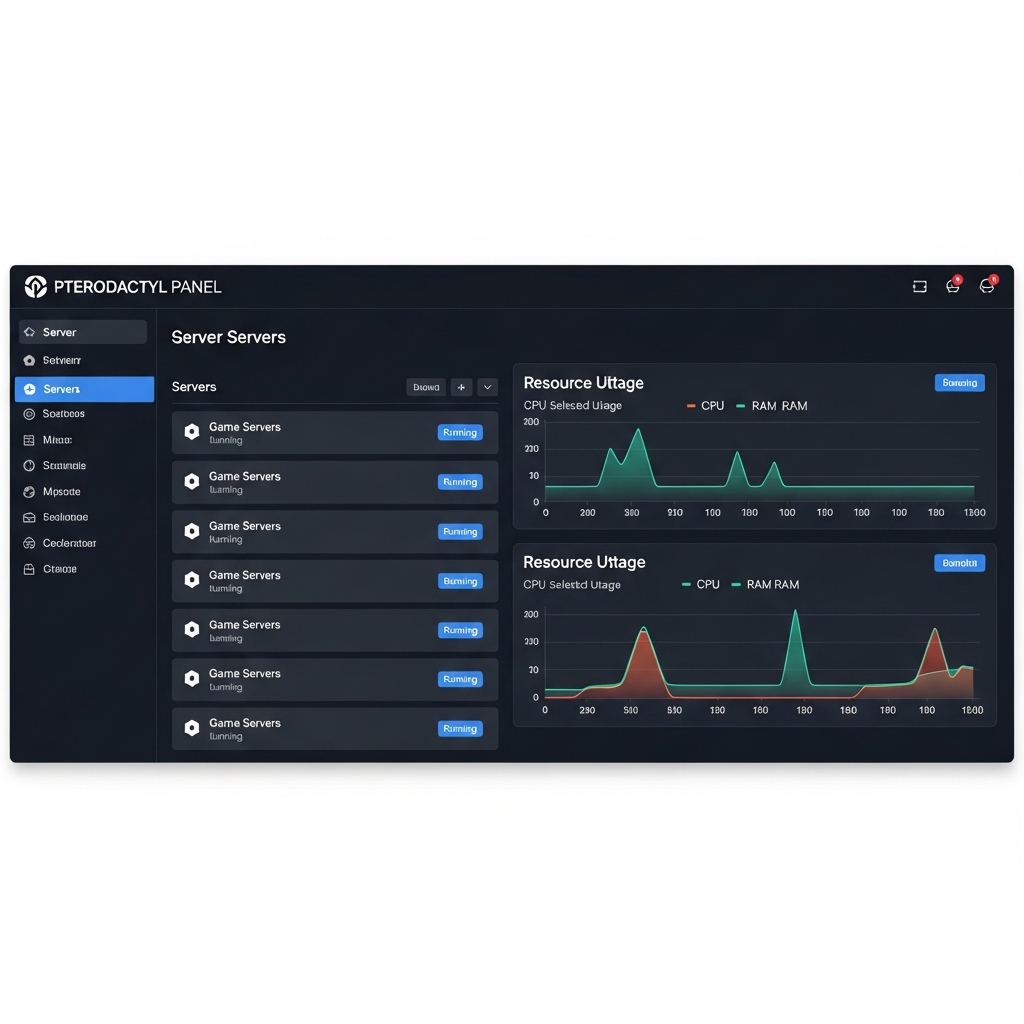
Monitor resource usage via Pterodactyl’s real-time graphs. If you see consistent CPU throttling (usage pegged at 100%), allocate more cores. If RAM usage approaches the limit, increase allocation before crashes occur.
Automated Backups and Schedules
Pterodactyl’s scheduling system handles backups, restarts, and custom commands. To set up nightly backups:
- Open your server’s Schedules tab
- Create a new schedule, set to run daily at 3:00 AM
- Add a task: Create Backup
- Optionally add a second task: Restart Server (runs after backup completes)
Backups are stored on the VPS and can be downloaded via the web interface or SFTP. For critical servers, configure off-site backup sync using rclone or similar tools.
Game-Specific Configuration Examples
Minecraft with Mods (Fabric)
Use the Fabric egg. After installation, access files via SFTP and upload your modpack:
- Download your desired modpack (e.g., from CurseForge)
- Connect to SFTP using credentials from the server’s Settings tab
- Upload mods to
/mods/directory - Edit
server.propertiesas needed - Restart the server from the console
Nexus Games’ native Minecraft hosting includes one-click modpack installation via CurseForge integration, eliminating manual file uploads entirely.
ARK Survival Ascended
ARK requires substantial resources. Allocate 16 GB RAM minimum. Configure startup parameters:
-log -MaxPlayers=50 -Port=7777 -QueryPort=27015 -ServerPassword=YourPassword
Install mods via the Steam Workshop integration (configured in the egg’s Startup variables). Nexus Games’ ARK hosting includes pre-configured CurseForge mod installation for faster setup.
Security, Performance Tuning, and Troubleshooting
Running game servers on a VPS exposes your infrastructure to threats—DDoS attacks, brute-force attempts, and resource abuse. Harden your Pterodactyl setup with these measures.
Essential Security Hardening
Firewall Configuration: Use UFW (Uncomplicated Firewall) to restrict access:
ufw default deny incoming
ufw default allow outgoing
ufw allow 22/tcp     # SSH
ufw allow 80/tcp     # HTTP
ufw allow 443/tcp    # HTTPS
ufw allow 8080/tcp   # Wings API
ufw allow 25565/tcp  # Minecraft (example game port)
ufw enable
Only open ports your specific games require. For Rust, open 28015-28016; for ARK, 7777 and 27015.
SSH Key Authentication: Disable password logins entirely:
nano /etc/ssh/sshd_config
Set PasswordAuthentication no and PermitRootLogin prohibit-password. Restart SSH:
systemctl restart sshd
DDoS Protection: Game servers are prime targets. Nexus Games includes game-specific DDoS mitigation on all VPS and game hosting plans, filtering malicious traffic at the network edge before it reaches your server.
Performance Tuning for High-Traffic Servers
Optimize Linux kernel parameters for game server workloads. Edit:
nano /etc/sysctl.conf
Add:
net.core.rmem_max = 16777216
net.core.wmem_max = 16777216
net.ipv4.tcp_rmem = 4096 87380 16777216
net.ipv4.tcp_wmem = 4096 65536 16777216
net.ipv4.tcp_congestion_control = bbr
vm.swappiness = 10
Apply changes:
sysctl -p
These settings increase network buffer sizes and reduce disk swap usage, improving latency and throughput for game traffic.
Common Troubleshooting Scenarios
Wings Fails to Start
Check logs for specific errors:
journalctl -u wings -n 50
Common issues:
- Port conflicts: Ensure port 8080 isn’t used by another service
- Config errors: Validate
/etc/pterodactyl/config.ymlsyntax - Docker not running: Run
systemctl status dockerto verify
Game Server Won’t Start
View console output in the Panel’s Console tab. Look for:
- Port binding errors: Another server is using the same port
- Out of memory: Increase RAM allocation
- Missing Java version: Some modpacks require Java 17+; adjust the egg’s Docker image
High Latency or Lag
Run network diagnostics:
ping -c 10 your.server.ip
mtr -rwc 50 your.server.ip
If latency is inconsistent, contact your VPS provider. On Nexus Games infrastructure, our 1 Gbps uplinks and optimized routing typically deliver sub-20ms latency to North American and European players.
Scaling Your Pterodactyl Infrastructure: Multi-Node Setups
Once you outgrow a single VPS, Pterodactyl’s distributed architecture shines. You can add additional nodes (Wings servers) without touching the Panel.
When to Add Nodes
Consider scaling horizontally when:
- Your primary VPS consistently runs at 80%+ CPU or RAM
- You want geographic distribution (EU and US nodes for lower latency)
- You’re hosting dozens of game servers across different games
- You need isolated environments (production vs. testing)
Adding a New Node
Order a second VPS (can be at a different provider). Install Wings as described earlier. In the Panel:
- Navigate to Admin → Nodes → Create New
- Enter the new node’s IP address and allocate ports
- Copy the generated configuration to the new server’s
/etc/pterodactyl/config.yml - Start Wings:
systemctl start wings
Pterodactyl automatically detects the new node. When creating servers, you can now choose which node hosts each game server, distributing load intelligently.
Database and Storage Considerations
The Panel’s MariaDB database and Redis cache remain centralized. For high-availability production environments, consider:
- Database replication: MariaDB master-slave setup for redundancy
- Shared storage: NFS or Ceph for centralized backups across nodes
- Load balancing: Nginx reverse proxy distributing player connections
Most communities don’t need this complexity until managing 50+ concurrent game servers. Start simple and scale as necessary.
Conclusion
Deploying a VPS Pterodactyl game server unlocks unmatched control, performance, and scalability for hosting Minecraft, Rust, ARK, and dozens of other multiplayer games. While manual setup requires Linux expertise, the result is a professional-grade infrastructure you fully own and customize. For those wanting immediate deployment, Nexus Games offers pre-configured Pterodactyl VPS hosting on AMD Ryzen 9 7950X3D hardware with DDR5 ECC memory, KVM virtualization, DDoS protection, and 24/7 support—eliminating weeks of configuration and letting you focus on building your community from day one.
FAQ
Can I run multiple game types on one Pterodactyl VPS?
Absolutely. Pterodactyl’s containerized architecture allows you to host Minecraft, Rust, Valheim, and other games simultaneously on the same VPS. Each server runs in an isolated Docker container with dedicated resource allocations. Ensure your VPS has sufficient total RAM and CPU cores to accommodate all servers’ combined requirements. A VPS with 32 GB RAM and 8 cores can typically host 4-6 modded game servers comfortably.
How do I migrate existing game servers to Pterodactyl?
First, create a new server in Pterodactyl using the appropriate egg for your game. Stop your existing server, then use SFTP to download all server files (world data, configs, mods). Upload these files to the new Pterodactyl server’s directory, overwriting default files. Verify configuration files (server.properties for Minecraft, etc.) match your previous settings. Start the server and test thoroughly before decommissioning the old host.
What happens if my VPS runs out of resources mid-game?
If RAM is exhausted, the Linux kernel’s OOM (Out Of Memory) killer terminates processes—usually crashing your game servers. CPU overload causes lag and timeouts. Prevent this by monitoring resource usage via Pterodactyl’s graphs and setting up alerts. With Nexus Games VPS hosting, you can upgrade CPU cores, RAM, and storage through the panel without reinstalling—changes apply immediately. Always allocate 20-30% headroom above normal usage to handle player spikes.