Learning how to create FiveM server infrastructure using a Windows VPS is essential for developers seeking complete control over their GTA V multiplayer environment in 2025. Unlike managed hosting solutions, a Windows VPS offers root-level access, custom resource allocation, and the flexibility to install any framework or script. This comprehensive guide walks you through every step—from selecting the right VPS specifications to launching your first FiveM instance with optimal performance and security.
Why Choose a Windows VPS to Create FiveM Server Infrastructure?
A Windows VPS provides dedicated resources through KVM virtualization, ensuring that your FiveM server receives consistent CPU threads, RAM, and disk I/O without noisy-neighbor interference. When you create FiveM server deployments on a VPS, you gain administrator privileges to configure Windows Server features, install custom dependencies like Visual C++ redistributables, and manage firewall rules directly through Remote Desktop Protocol (RDP).
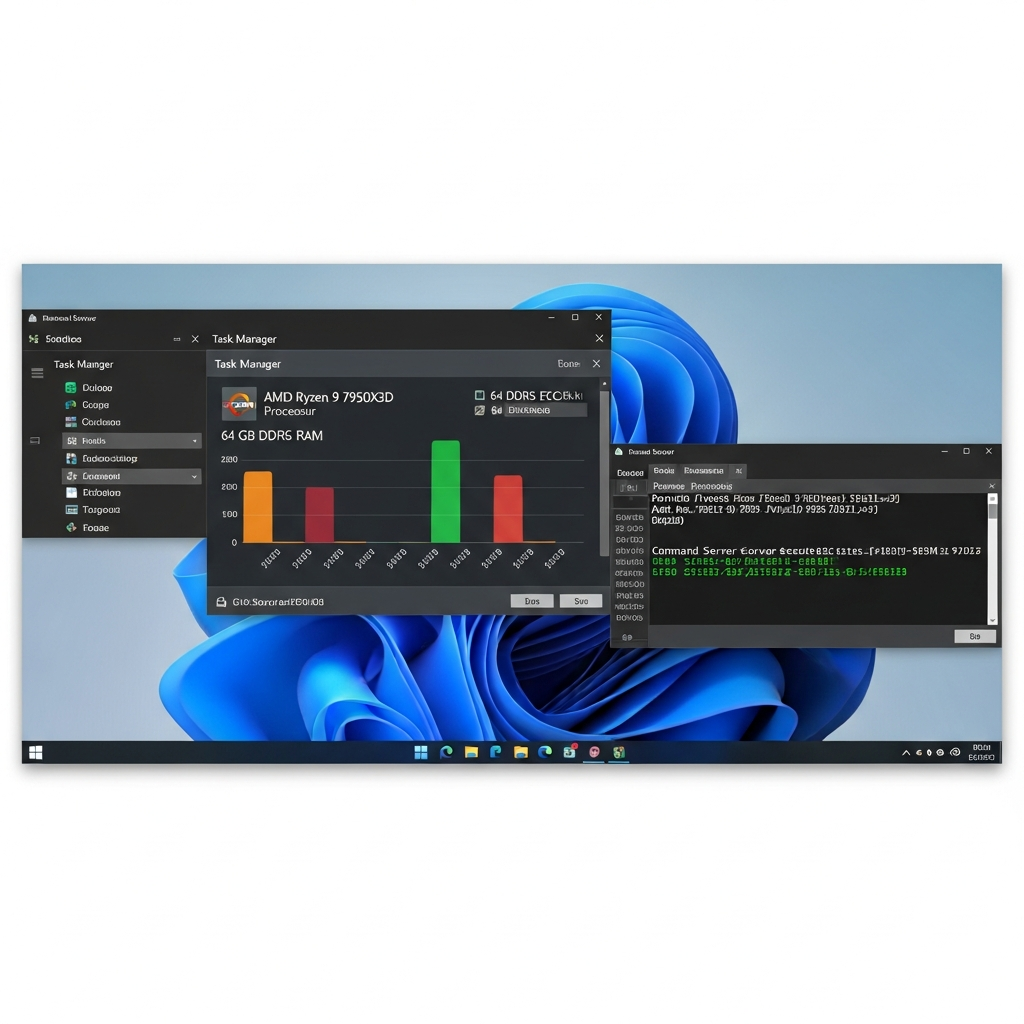
For 2025, the recommended baseline includes an AMD Ryzen 9 7950X3D processor (16 cores, 32 threads, up to 5.7 GHz boost), which excels at single-threaded workloads critical for FiveM’s server tick rate. Pairing this with DDR5 ECC RAM (32–128 GB) ensures memory integrity under heavy mod loads, while NVMe SSD storage accelerates resource streaming and database queries. Nexus Games’ Windows VPS plans deliver these specifications with 1 Gbps network uplinks and Game Anti-DDoS protection, purpose-built for multiplayer game servers.
Key Advantages Over Shared or Managed Hosting
- Full administrative control: Install any software stack, modify registry keys, and schedule automated backups via Task Scheduler.
- Dedicated resources: KVM ensures your allocated vCPUs and RAM are reserved exclusively for your workloads—no CPU steal or memory ballooning.
- Custom networking: Configure static IPs, port forwarding, and firewall policies tailored to FiveM’s UDP/TCP requirements (default port 30120).
- Scalability: Upgrade RAM or storage on-demand without migrating servers, preserving your IP address and DNS records.
This level of control is indispensable for developers running custom ESX/QBCore frameworks, integrating external APIs, or hosting multiple FiveM instances on a single VPS. Managed FiveM hosting—while simpler—restricts file system access and often bundles unnecessary resource limits. For a deeper comparison, consult Cfx.re’s official server setup documentation.
Step-by-Step: How to Create FiveM Server on Windows VPS
This section provides a detailed walkthrough to create FiveM server environments from scratch. We assume you’ve provisioned a Windows VPS with at least 4 vCPU cores, 8 GB RAM, and 40 GB SSD storage—though 8 vCPUs and 16 GB RAM are recommended for 32+ concurrent players.
1. Connect to Your Windows VPS via RDP
After deploying your VPS through the Nexus Games Windows VPS dashboard, retrieve your server’s IP address, administrator username, and password. On your local machine:
- Windows: Launch
mstsc.exe(Remote Desktop Connection), enter the IP, and authenticate. - macOS: Download Microsoft Remote Desktop from the App Store, create a new PC connection, and input credentials.
- Linux: Use
rdesktoporxfreerdp:xfreerdp /u:Administrator /p:YourPassword /v:YOUR_VPS_IP.
Once connected, you’ll see the Windows Server desktop. Open Server Manager to confirm system specs and disable IE Enhanced Security Configuration (ESC) for easier browser access during setup.
2. Install Required Dependencies
FiveM server binaries depend on specific Visual C++ runtime libraries. Download and install the following packages from Microsoft’s official site:
- Visual C++ Redistributable 2019 (x64): Required for FiveM’s core executable.
- Visual C++ Redistributable 2015–2022 (x64): Supports many community resources and frameworks.
Additionally, ensure Windows Defender Firewall allows inbound connections on TCP/UDP port 30120 (FiveM default) and TCP port 30110 (txAdmin web interface). Create inbound rules via Windows Defender Firewall with Advanced Security:
New-NetFirewallRule -DisplayName "FiveM Server" -Direction Inbound -LocalPort 30120 -Protocol TCP -Action Allow
New-NetFirewallRule -DisplayName "FiveM Server" -Direction Inbound -LocalPort 30120 -Protocol UDP -Action Allow
New-NetFirewallRule -DisplayName "txAdmin" -Direction Inbound -LocalPort 30110 -Protocol TCP -Action Allow
3. Download and Extract FiveM Server Artifacts
Create a dedicated directory for your server, e.g., C:\FiveM-Server\. Download the latest Windows server build from Cfx.re’s artifact repository. In PowerShell:
cd C:\
mkdir FiveM-Server
cd FiveM-Server
Invoke-WebRequest -Uri "https://runtime.fivem.net/artifacts/fivem/build_server_windows/master/" -OutFile "server.zip"
Expand-Archive -Path "server.zip" -DestinationPath ".\"
This extracts the FiveM server executable (FXServer.exe), citizen directory, and cache folders. Verify the server.cfg template is present; if not, create one manually.
4. Configure server.cfg for Optimal Performance
Open server.cfg in Notepad++ or VS Code. A minimal production-ready configuration includes:
# Server identity
sv_hostname "My Windows VPS FiveM Server | Nexus Games"
sv_maxclients 48
sv_licenseKey "YOUR_PATREON_KEY_HERE"

# Networking
endpoint_add_tcp "0.0.0.0:30120"
endpoint_add_udp "0.0.0.0:30120"

# Resources
ensure mapmanager
ensure chat
ensure spawnmanager
ensure sessionmanager
ensure basic-gamemode
ensure hardcap

# Performance tuning
sv_enforceGameBuild 2699
set mysql_connection_string "mysql://user:password@localhost/fivem?charset=utf8mb4"

# Security
sv_scriptHookAllowed 0
set steam_webApiKey "YOUR_STEAM_API_KEY"
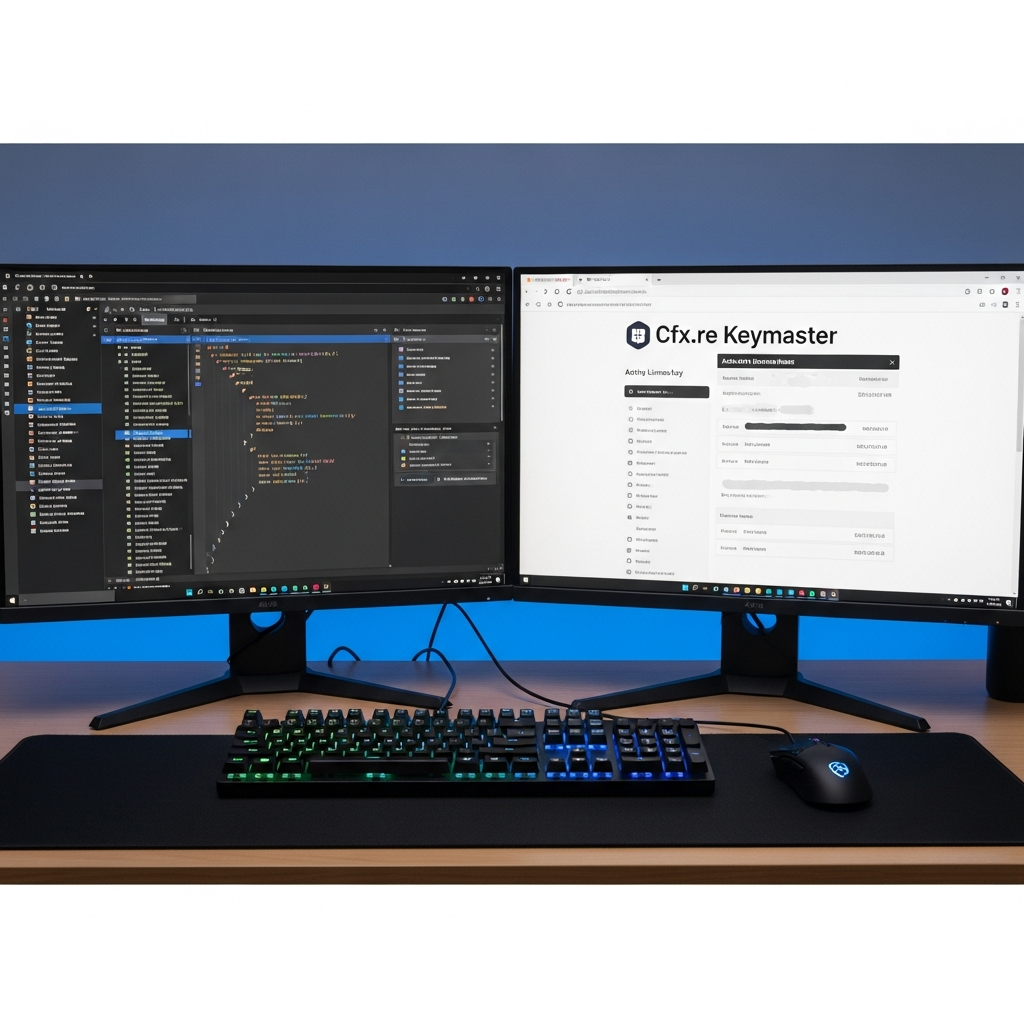
Replace YOUR_PATREON_KEY_HERE with the Patreon key included in Nexus Games FiveM hosting plans or register one at Cfx.re Keymaster. The sv_maxclients value should align with your RAM allocation: ~512 MB per 16 players plus 2 GB base overhead.
5. Launch Your FiveM Server
Start the server by executing FXServer.exe with your config file:
cd C:\FiveM-Server
.\FXServer.exe +exec server.cfg
Monitor the console output for initialization messages. Successful startup logs include:
Server license key authentication succeededResource mapmanager startedServer started on endpoint 0.0.0.0:30120
If errors appear regarding missing DLLs, revisit step 2 to install Visual C++ runtimes. For persistent crashes, check CitizenFX.log in the server directory for stack traces.
6. Access txAdmin for Web-Based Management
FiveM includes txAdmin, a powerful web UI for server control, resource management, and player moderation. On first launch, navigate to http://YOUR_VPS_IP:30110 in a browser. Complete the setup wizard:
- Create an admin account (username/password).
- Link your FiveM license key.
- Select a base recipe (e.g., ESX Legacy, QBCore, or vanilla).
- Configure automatic restart schedules and crash recovery policies.
txAdmin simplifies server updates, resource installation from GitHub, and real-time performance monitoring—essential for production environments. Pin the interface to your taskbar for quick access during maintenance windows.
Advanced Optimization and Security Best Practices
Once your baseline server runs, implement these enhancements to maximize stability and protect against exploits commonly targeting FiveM infrastructure.
Resource Management and Mod Integration
Organize resources into categorized folders (resources/[framework], resources/[gameplay], etc.). Use ensure directives in server.cfg for critical resources and start for optional ones to control load order. For ESX/QBCore frameworks, ensure MySQL/MariaDB is installed and configured with proper connection pooling:
set mysql_connection_string "mysql://fivem_user:SecurePass123@localhost/es_extended?charset=utf8mb4&connectionLimit=10"
Leverage Nexus Games’ pre-installable mods via panel for streamlined updates. While FiveM doesn’t directly support CurseForge (a Minecraft/ARK feature), community repositories like fivem-esx on GitHub provide vetted resource packs.
Network and DDoS Hardening
Nexus Games’ Game Anti-DDoS filters malicious traffic at the network edge, but application-layer protections still matter. In server.cfg, enable rate limiting:
sv_filterRequestControl 4
sv_maxClientsPerIP 2
Use Cloudflare’s Spectrum or a reverse proxy (e.g., Nginx with stream module) to obfuscate your VPS’s real IP. For enterprise deployments, deploy a dedicated Linux VPS as a load balancer fronting multiple FiveM instances.
Automated Backups and Disaster Recovery
Schedule nightly backups of C:\FiveM-Server\resources\, server.cfg, and your MySQL database. Use Windows Task Scheduler to trigger PowerShell scripts:
# Backup script example
$date = Get-Date -Format "yyyy-MM-dd"
$source = "C:\FiveM-Server"
$destination = "D:\Backups\FiveM-$date.zip"
Compress-Archive -Path $source -DestinationPath $destination -Force
Store backups on separate storage or offsite via SFTP. Nexus Games VPS plans support additional SSD volumes for isolated backup storage without impacting server I/O.
Performance Tuning for High Player Counts
For servers targeting 64+ players, allocate at least 8 vCPUs and 32 GB DDR5 ECC RAM. In server.cfg, tweak these convars:
set onesync on
set onesync_enableInfinity 1
set onesync_population 1
OneSync Infinity removes entity limits, enabling larger maps and more simultaneous players. Monitor CPU usage in Task Manager; if any core consistently hits 100%, consider splitting into multiple FiveM instances behind a proxy.
The AMD Ryzen 9 7950X3D’s 3D V-Cache dramatically reduces cache misses during heavy scripting operations—ESX inventory systems, for example, benefit from ~15% faster database queries compared to non-X3D Ryzen 9 models.
Troubleshooting Common Windows VPS FiveM Issues
Even with meticulous setup, you may encounter edge cases specific to Windows VPS hosting. Here are solutions to frequent problems when you create FiveM server deployments.
Server Crashes on Startup
- Missing DLLs: Re-run Visual C++ Redistributable installers and reboot.
- Port conflicts: Verify no other services (IIS, SQL Server) bind to 30120. Use
netstat -ano | findstr 30120to identify conflicts. - Invalid license key: Double-check the key in
server.cfgmatches your Keymaster dashboard. Nexus Games customers receive Patreon keys automatically.
Players Cannot Connect
- Firewall blocking: Confirm inbound rules allow TCP/UDP 30120. Test with
Test-NetConnection -ComputerName YOUR_VPS_IP -Port 30120. - Incorrect endpoint: Ensure
server.cfguses0.0.0.0:30120, notlocalhostor a private LAN IP. - Outdated game build: Set
sv_enforceGameBuildto the latest GTA V build number (check Cfx.re forums).
High Latency or Lag Spikes
- Insufficient RAM: Windows Server reserves ~4 GB; if total VPS RAM is 8 GB, only 4 GB remains for FiveM. Upgrade to 16 GB minimum.
- Disk I/O bottleneck: Move resource files to an NVMe SSD partition. Check disk queue length in Resource Monitor.
- Network saturation: Monitor bandwidth with
Get-NetAdapterStatistics. If consistently near 1 Gbps, consider a VPS with 2.5 Gbps uplink.
For persistent issues, Nexus Games provides 24/7 support via ticket system and Discord, staffed by engineers experienced in Windows VPS game server optimization.
Conclusion
Deploying a FiveM server on a Windows VPS grants unparalleled flexibility for custom frameworks, advanced mod integrations, and enterprise-grade scalability. By leveraging KVM-based dedicated resources—like the AMD Ryzen 9 7950X3D and DDR5 ECC RAM—you ensure consistent performance even under peak player loads. Follow this guide’s steps to provision, secure, and optimize your server, and rely on Nexus Games’ infrastructure for robust network uplinks and proactive DDoS mitigation. Whether launching a small roleplay community or a 128-player metropolis, Windows VPS hosting provides the foundation for success in 2025.
FAQ
Do I need a Patreon subscription to run a FiveM server on a Windows VPS?
Yes, FiveM requires a valid license key from Cfx.re’s Keymaster portal. Nexus Games FiveM hosting plans include a Patreon key automatically, eliminating the need for separate subscriptions. If self-hosting on a VPS, you must register your own key or use Nexus Games’ bundled offering.
Can I host multiple FiveM servers on a single Windows VPS?
Absolutely. Allocate separate directories and unique ports (e.g., 30120, 30121, 30122) in each server.cfg. Ensure your VPS has sufficient vCPUs and RAM—budget ~4 GB RAM and 2 vCPUs per 32-player instance. Use txAdmin’s multi-server management feature or systemd-style service wrappers for automated restarts.
How do I migrate an existing FiveM server to a Nexus Games Windows VPS?
Copy your entire server directory (resources/, server.cfg, database dumps) via SFTP or RDP file transfer. Install dependencies (Visual C++ runtimes), restore your MySQL database using phpMyAdmin or command-line tools, then update server.cfg with the new VPS IP and MySQL credentials. Test locally before updating your server browser listing.