If you want to create DayZ server using a Windows VPS in 2025, you’re choosing one of the most flexible and powerful hosting methods available. A Windows VPS offers full administrative control, dedicated resources through KVM virtualization, and the ability to customize every aspect of your DayZ server environment, from mods to network settings, ensuring optimal performance for your survival community.
Why Create a DayZ Server on Windows VPS Instead of Standard Hosting?
Understanding why a Windows VPS is the superior choice for hosting DayZ servers begins with recognizing the limitations of shared or managed game hosting. When you create DayZ server instances on a VPS, you gain root-level access to the entire Windows Server operating system, allowing you to install custom dependencies, manage firewall rules, schedule automated tasks, and run multiple applications simultaneously.
A Windows VPS powered by AMD Ryzen 9 7950X3D processors with 16 cores running at up to 5 GHz delivers unmatched single-threaded performance, essential for DayZ’s simulation and AI calculations. Combined with DDR5 ECC RAM ranging from 32 GB to 128 GB, your server can handle large player counts, complex mods from the Steam Workshop, and intensive scripts without memory bottlenecks or crashes.
The KVM virtualization technology ensures that your VPS resources are truly dedicated—no CPU stealing, no RAM overcommitment. Every gigabyte of memory and processor cycle you pay for is exclusively yours, which translates into consistent tick rates, lower latency, and a smoother player experience even during peak activity hours.
Key Advantages of Windows VPS for DayZ
- Full administrative control: Configure Windows Firewall, Remote Desktop, Task Scheduler, and third-party applications without restrictions.
- Multi-application hosting: Run DayZ alongside web panels, databases, Discord bots, or additional game servers on the same VPS.
- Custom mod management: Install Steam Workshop mods manually or via automated scripts, manage load orders, and update dependencies independently.
- Advanced networking: Configure port forwarding, VPN tunnels, and DDoS protection rules directly from Windows Server.
- Backup automation: Schedule daily backups using Windows Task Scheduler and third-party tools like Veeam or Acronis.
Choosing a Windows VPS from Nexus Games means you’re not locked into a one-size-fits-all control panel. You have the flexibility to install DayZ Server files, configure launch parameters, and optimize performance settings exactly as you need them, with 24/7 support available whenever you encounter technical challenges.

Step-by-Step Guide to Create DayZ Server on Windows VPS
Creating a DayZ server on a Windows VPS involves several technical stages, from initial server provisioning to Steam Workshop integration. Follow this comprehensive guide to ensure a smooth deployment process.
Stage 1: Provisioning Your Windows VPS
Begin by selecting a Windows VPS plan that meets DayZ’s minimum hardware requirements. For a stable server supporting 40-60 players with moderate mods, you should allocate at least 16 GB DDR5 ECC RAM, 4 dedicated CPU cores from the Ryzen 9 7950X3D, and 100 GB NVMe SSD storage for the game files, mods, and logs.
Once your VPS is provisioned through the Nexus Games panel, connect via Remote Desktop Protocol (RDP). Open the Remote Desktop Connection application on your local Windows machine, enter your VPS IP address, and authenticate with the credentials provided in your welcome email.
Stage 2: Installing SteamCMD and DayZ Server Files
DayZ dedicated server files are distributed through Valve’s SteamCMD utility. Download SteamCMD from the official Valve developer wiki and extract it to C:\SteamCMD\ on your VPS. Open Command Prompt as Administrator and navigate to the SteamCMD directory:
cd C:\SteamCMD
steamcmd.exe +login anonymous +force_install_dir C:\DayZServer +app_update 223350 validate +quit
This command downloads the DayZ Server files (App ID 223350) to C:\DayZServer. The validation process ensures all files are correctly installed. Depending on your VPS’s 1 Gbps network connection, the download should complete within 15-30 minutes.
Stage 3: Configuring Server Launch Parameters
Create a batch file to simplify server startup and configure critical launch parameters. In C:\DayZServer\, create a new text file named StartServer.bat and add the following:
@echo off
start DayZServer_x64.exe -config=serverDZ.cfg -port=2302 -profiles=ServerProfiles -dologs -adminlog -freezecheck
Key parameters explained:
- -config=serverDZ.cfg: Points to your main server configuration file containing hostname, passwords, and gameplay settings.
- -port=2302: Sets the game port. Ensure this port is open in Windows Firewall and your VPS control panel.
- -profiles=ServerProfiles: Defines the directory for player profiles, logs, and persistent data.
- -dologs -adminlog: Enables detailed logging for troubleshooting and admin actions.
- -freezecheck: Monitors server freezes and logs potential performance issues.
Stage 4: Editing serverDZ.cfg and Server Settings
Navigate to C:\DayZServer\ and locate serverDZ.cfg. Open it with Notepad++ (recommended) or Windows Notepad. Key configuration sections include:
hostname = "My DayZ Server | High Performance | Mods Welcome";
password = "";
passwordAdmin = "YourSecureAdminPassword";
maxPlayers = 60;
verifySignatures = 2;
forceSameBuild = 1;
disableVoN = 0;
vonCodecQuality = 20;
timeStampFormat = "Short";
motd[] = {"Welcome to our DayZ community!","Rules: No KOS in safe zones"};
Critical settings to adjust:
- verifySignatures = 2: Enforces mod signature verification, preventing unauthorized client mods.
- maxPlayers: Adjust based on your VPS resources; 60 players require at least 16 GB RAM.
- disableVoN = 0: Enables in-game voice chat. Set to 1 if you prefer Discord-only communication.
- vonCodecQuality: Higher values (up to 30) improve voice quality but increase bandwidth usage.
Stage 5: Configuring Windows Firewall and Port Forwarding
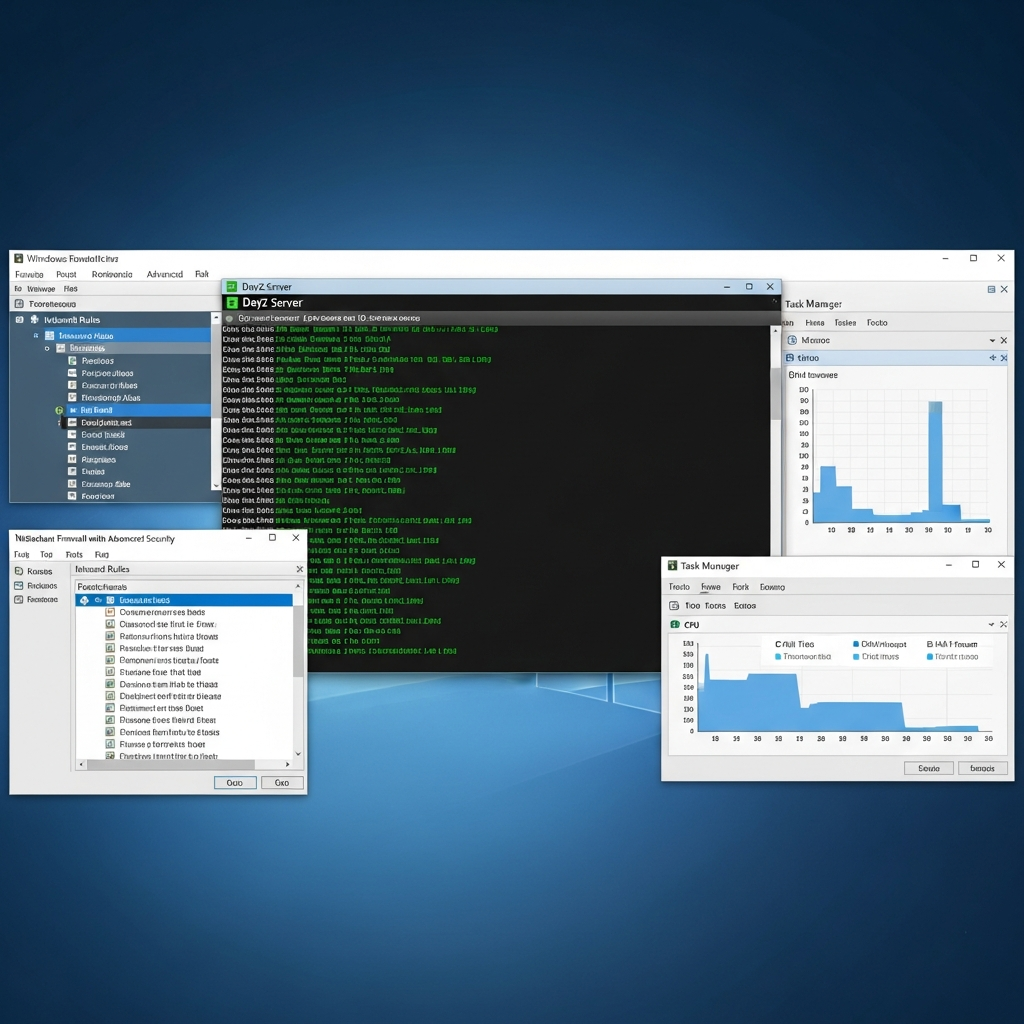
DayZ requires several ports to be accessible from the internet. Open Windows Defender Firewall with Advanced Security and create inbound rules for:
- Port 2302 (UDP): Game traffic
- Port 2303 (UDP): Steam query port
- Port 2304 (UDP): Steam port (optional, improves server browser visibility)
- Port 27016 (TCP): RCON (if using remote administration tools)
In the Firewall interface, select New Rule → Port → UDP → Specific local ports: 2302,2303,2304 → Allow the connection → Apply to Domain, Private, Public → Name the rule “DayZ Server Ports”. Repeat for TCP port 27016 if you enable RCON.
Stage 6: Installing and Managing Steam Workshop Mods
DayZ’s modding ecosystem on Steam Workshop offers thousands of community-created assets. To install mods on your Windows VPS, use the DayZ Launcher or manual SteamCMD commands. For automated mod updates, create a PowerShell script:
$mods = @("@CF","@DayZ-Expansion","@BaseBuildingPlus")
foreach ($mod in $mods) {
    C:\SteamCMD\steamcmd.exe +login yoursteamuser +workshop_download_item 221100 $modID validate +quit
}
Replace $modID with the Workshop item ID (found in the mod’s Steam Workshop URL). Downloaded mods appear in C:\SteamCMD\steamapps\workshop\content\221100\. Copy them to C:\DayZServer\ and rename folders to match the mod’s key name (usually prefixed with @).
Edit serverDZ.cfg to load mods:
mods[] = {"@CF","@DayZ-Expansion","@BaseBuildingPlus"};Ensure mod load order matches dependencies. Most mods include documentation specifying required load positions. The DayZSALauncher tool can help identify conflicts and correct ordering.
Stage 7: Automating Server Startup and Restarts
Use Windows Task Scheduler to automate server restarts every 6 hours, clearing memory leaks and applying updates. Open Task Scheduler, create a new Basic Task, set the trigger to Daily with Repeat task every 6 hours, and set the action to Start a program pointing to C:\DayZServer\StartServer.bat.
For graceful shutdowns before restarts, install a third-party RCON tool like BattleMetrics or OmegaManager, which can send in-game warnings (“Server restarting in 10 minutes”) and execute shutdown commands before the scheduled restart.
Stage 8: Monitoring Performance and Troubleshooting
Monitor your DayZ server’s performance using Windows Task Manager, Resource Monitor, and log files in C:\DayZServer\ServerProfiles\. Key metrics to watch:
- CPU usage: Should remain below 70% average; spikes above 90% indicate script inefficiencies or too many AI.
- RAM usage: DayZ with mods can consume 12-20 GB; ensure your VPS has headroom to avoid paging to disk.
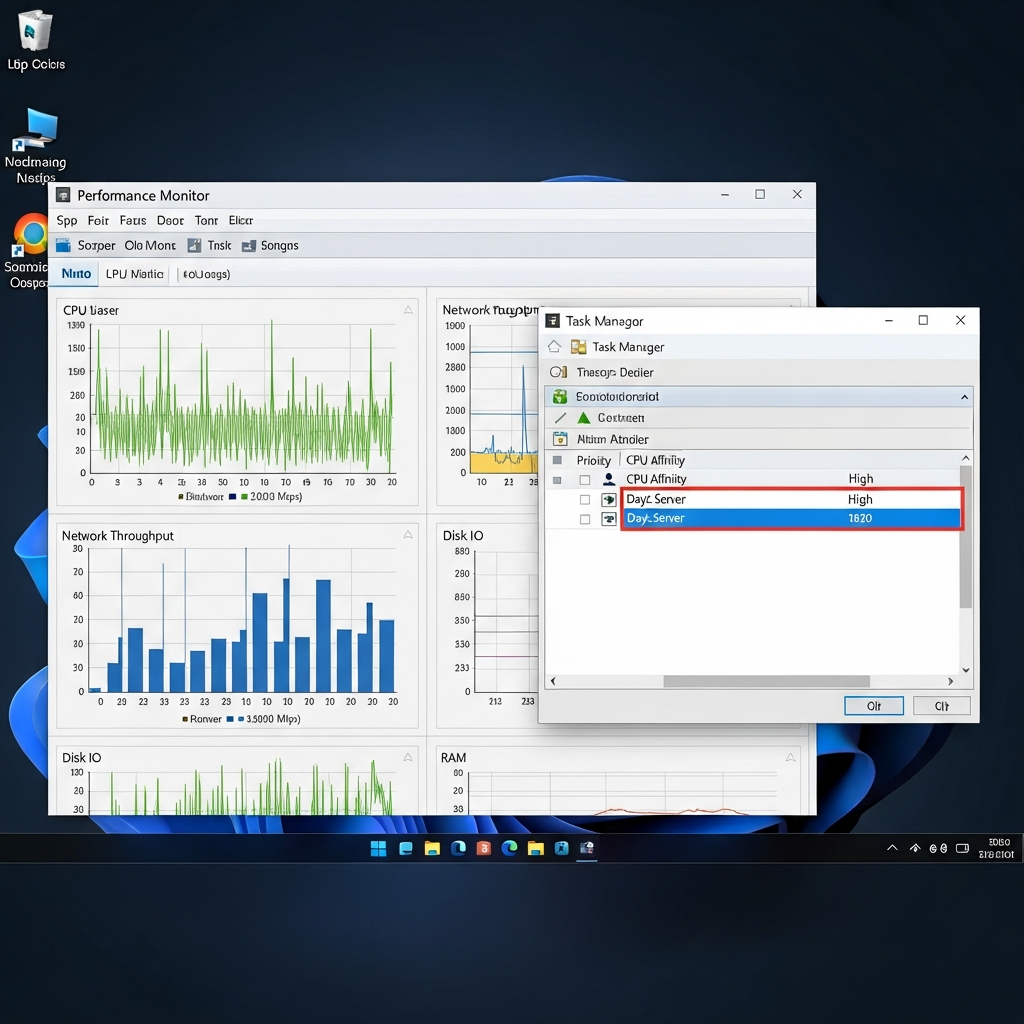
- Network bandwidth: Monitor with Windows Performance Monitor; 60 players typically use 50-150 Mbps depending on voN and activity.
- Disk I/O: NVMe SSDs should handle DayZ’s read/write operations; high latency suggests storage bottleneck.
Common troubleshooting scenarios:
| Issue | Cause | Solution |
| Server not visible in browser | Firewall blocking ports or incorrect Steam query port | Verify ports 2302-2304 UDP are open; check serverDZ.cfg has correct IP |
| High CPU usage / lag | Too many AI, inefficient mods, or script loops | Reduce AI spawn rates, disable heavy mods, check logs for error loops |
| Memory leak / crashes after hours | Poorly coded mods or DayZ engine issues | Schedule automatic restarts every 4-6 hours; update mods regularly |
| Players can’t connect | Mod mismatch, signature verification, or version mismatch | Ensure server and client mods/versions match; set verifySignatures=2 |
Optimizing Windows VPS for Maximum DayZ Server Performance
Once your DayZ server is operational, optimizing Windows Server settings and resource allocation ensures sustained performance under load. These advanced tweaks leverage the AMD Ryzen 9 7950X3D’s 3D V-Cache technology and DDR5 ECC memory to minimize latency and maximize throughput.
Windows Server Power Plan Optimization
By default, Windows Server may use a Balanced power plan that throttles CPU frequency during low activity. For game servers requiring consistent performance, switch to High Performance mode:
powercfg /setactive 8c5e7fda-e8bf-4a96-9a85-a6e23a8c635cThis command sets the High Performance power plan, ensuring the Ryzen 9 7950X3D maintains maximum boost clocks (up to 5 GHz) even during brief idle periods. You can verify the active plan with:
powercfg /listProcess Priority and Affinity Settings
Assign higher process priority to DayZServer_x64.exe to ensure the OS scheduler allocates CPU time preferentially. Open Task Manager, locate DayZServer_x64.exe under Details, right-click, and set Priority → High. For persistent priority settings, modify your StartServer.bat:
start /high DayZServer_x64.exe -config=serverDZ.cfg -port=2302 -profiles=ServerProfiles -dologs -adminlog -freezecheckTo bind the DayZ process to specific CPU cores (useful if running multiple servers), use processor affinity. The Ryzen 9 7950X3D has two chiplets; cores 0-7 include 3D V-Cache and offer superior gaming performance. Bind DayZ to these cores:
start /affinity FF /high DayZServer_x64.exe -config=serverDZ.cfgThe /affinity FF flag (hexadecimal for binary 11111111) binds the process to cores 0-7.
Network Adapter Tuning
Optimize network adapter settings to reduce latency and improve packet throughput. Open Device Manager, expand Network adapters, right-click your primary adapter, and select Properties → Advanced. Recommended settings:
- Interrupt Moderation: Disabled (reduces latency at the cost of slightly higher CPU usage)
- Receive Buffers: 2048 (increases buffer size for high player counts)
- Transmit Buffers: 2048
- Jumbo Frames: Disabled (unless your network infrastructure supports MTU > 1500)
- Flow Control: Disabled
Additionally, disable Windows Update bandwidth throttling and background network activity using Group Policy Editor (gpedit.msc) under Computer Configuration → Administrative Templates → Network → Background Intelligent Transfer Service.
Disk I/O and Storage Optimization
DayZ’s persistence system writes frequently to disk. Ensure your NVMe SSD operates at maximum performance by disabling disk indexing and prefetching for the DayZ installation directory:
fsutil behavior set DisableDeleteNotify 0
fsutil behavior set EncryptPagingFile 0
These commands enable TRIM (essential for SSD longevity) and disable paging file encryption, reducing write overhead. Additionally, move the Windows paging file (virtual memory) to a separate drive or disable it entirely if you have sufficient RAM (64 GB+):
Open System Properties → Advanced → Performance Settings → Advanced → Virtual Memory → Change. Uncheck Automatically manage paging file size, select No paging file, and click Set.
Security Best Practices for Windows VPS DayZ Hosting
Hosting a public DayZ server exposes your Windows VPS to potential attacks, including DDoS, brute-force RDP attempts, and exploit injections. Implementing security hardening measures protects your server infrastructure and player data.
RDP Security Hardening
Change the default RDP port (3389) to a non-standard port to reduce automated brute-force attacks. Edit the Windows Registry:
reg add "HKLM\System\CurrentControlSet\Control\Terminal Server\WinStations\RDP-Tcp" /v PortNumber /t REG_DWORD /d 49152 /fThis changes RDP to port 49152. Restart the Remote Desktop Services service and update your firewall rules accordingly. Additionally, enforce Network Level Authentication (NLA) and disable RDP for the Administrator account, creating a separate admin user with a strong password (20+ characters, mixed case, symbols).
DDoS Protection and Rate Limiting
Nexus Games’ Windows VPS offerings include Game Anti-DDoS protection, which filters volumetric attacks at the network edge. For additional application-layer protection, configure Windows Firewall to rate-limit incoming connections per IP:
netsh advfirewall firewall add rule name="DayZ Rate Limit" dir=in action=allow protocol=UDP localport=2302 remoteip=any enable=yesCombine this with third-party tools like FailToBan for Windows, which monitors logs and temporarily blocks IPs exhibiting suspicious behavior (e.g., excessive failed connections).
Regular Backups and Disaster Recovery
Schedule automated backups of your DayZ server files, configuration, and player data. Use Windows Server Backup or third-party solutions like Veeam Backup & Replication. Store backups on a separate drive or network location to protect against ransomware:
wbadmin start backup -backupTarget:D: -include:C:\DayZServer -quietTest restore procedures quarterly to ensure backups are functional. In case of corruption or attack, you can restore your server to operational status within minutes.
Keeping DayZ and Windows Server Updated
Regularly update DayZ Server files using SteamCMD:
C:\SteamCMD\steamcmd.exe +login anonymous +force_install_dir C:\DayZServer +app_update 223350 validate +quitEnable automatic Windows Updates for security patches but defer feature updates to avoid compatibility issues. Configure Group Policy to install updates during maintenance windows (e.g., 4 AM daily) to minimize player disruption.
Audit installed software and remove unnecessary applications that increase attack surface. Disable unused Windows services (e.g., Print Spooler, Remote Registry) via services.msc.
By following these security protocols, your Windows VPS remains resilient against common threats, ensuring uninterrupted DayZ server availability for your community.
Conclusion
Successfully learning how to create DayZ server on a Windows VPS empowers you with unmatched control, performance, and scalability. Leveraging KVM virtualization, AMD Ryzen 9 7950X3D processors, and DDR5 ECC memory from Nexus Games ensures your server handles intensive workloads, complex mods, and large player bases with ease. Implement the configuration, optimization, and security practices outlined in this guide to build a stable, high-performance DayZ hosting environment that your community will appreciate and trust.
FAQ
Can I run multiple DayZ servers on a single Windows VPS?
Yes, a Windows VPS with adequate resources (e.g., 64 GB RAM, 8+ CPU cores) can host multiple DayZ server instances. Each server requires its own directory, unique ports (e.g., 2302, 2312, 2322), and separate startup scripts. Ensure you allocate sufficient RAM per instance (12-16 GB for modded servers) and monitor CPU usage to avoid performance degradation. Use Task Scheduler to stagger restarts and prevent simultaneous high-load events.
How do I migrate an existing DayZ server to a Windows VPS?
To migrate, copy your entire DayZ server directory (including ServerProfiles folder containing player data and persistence files) from the old host to the new Windows VPS via FTP, SFTP, or Remote Desktop file transfer. Install SteamCMD on the VPS and run the app_update command to verify files. Update serverDZ.cfg with the new VPS IP address, reconfigure firewall rules, and test connectivity. Notify players of the new IP before switching DNS or redirecting your domain to minimize downtime.
What are the bandwidth requirements for a 60-player DayZ server?
A 60-player DayZ server with in-game VoN enabled typically consumes 50-150 Mbps depending on player activity, mod complexity, and vehicle density. The 1 Gbps network connection provided by Nexus Games Windows VPS offers ample headroom for peak traffic, simultaneous downloads, and mod updates. Monitor bandwidth usage with Windows Performance Monitor or third-party tools to ensure your plan accommodates growth. If you exceed 80% utilization consistently, consider upgrading to a higher-tier VPS plan with additional bandwidth allocation.