Learning how to configure ARK rates transforms your survival experience from standard to perfectly tailored gameplay. Whether you’re running a private server for friends or managing a community cluster, mastering ARK rate configuration gives you complete control over taming speed, resource harvesting, breeding intervals, and player progression. This complete 2025 guide walks you through every multiplier, from basic server.ini edits to advanced Game.ini tweaks, ensuring your ARK: Survival Evolved or Survival Ascended server delivers exactly the experience your players crave.
Understanding ARK Rate Multipliers and Configuration Files
To configure ARK rates effectively, you must first understand the two primary configuration files: GameUserSettings.ini and Game.ini. GameUserSettings.ini handles most gameplay multipliers—XP rates, taming speed, harvesting amounts, and breeding timers. Game.ini controls deeper mechanics like per-creature stat multipliers, engram availability, and loot crate contents. Both files reside in your server’s ShooterGame/Saved/Config directory (Windows) or equivalent path on Linux installations.
When hosting on infrastructure powered by the AMD Ryzen 9 7950X3D with 16 cores and 32 threads running at up to 5 GHz, file edits propagate instantly thanks to NVMe SSD storage and DDR5 ECC RAM. This hardware foundation ensures zero lag when reloading configurations, even on densely populated servers with hundreds of active structures and dinos.
Core Rate Categories
- XP Multipliers: Control player and dino leveling speed (XPMultiplier)
- Taming Speed: Adjust how fast wild creatures are tamed (TamingSpeedMultiplier)
- Harvesting Rates: Modify resource yields from trees, rocks, corpses (HarvestAmountMultiplier, HarvestHealthMultiplier)
- Breeding & Maturation: Scale egg hatch time, baby maturation, mating intervals (MatingIntervalMultiplier, BabyMatureSpeedMultiplier, EggHatchSpeedMultiplier)
- Spoilage & Decay: Extend or reduce item spoil times and structure decay (ItemSpoilTimeMultiplier, StructureDamageRepairCooldown)
Each multiplier defaults to 1.0. Values above 1.0 increase the effect (faster taming, more resources), while values below 1.0 slow progression. A TamingSpeedMultiplier of 3.0 makes taming three times faster; a value of 0.5 doubles taming duration. Understanding this inverse relationship is crucial when you configure ARK rates for balanced gameplay.

Step-by-Step: How to Configure ARK Rates via GameUserSettings.ini
The GameUserSettings.ini file is your primary tool to configure ARK rates for player-facing mechanics. Access it via FTP, SFTP, or your hosting provider’s file manager. On Nexus Games ARK servers, the intuitive control panel lets you edit configuration files directly through the web interface, eliminating the need for third-party FTP clients.
Essential Rate Parameters
Open GameUserSettings.ini and locate the [ServerSettings] section. Insert or modify these lines to configure ARK rates according to your desired difficulty:
[ServerSettings]
XPMultiplier=2.0
TamingSpeedMultiplier=5.0
HarvestAmountMultiplier=3.0
HarvestHealthMultiplier=1.5
MatingIntervalMultiplier=0.5
EggHatchSpeedMultiplier=10.0
BabyMatureSpeedMultiplier=15.0
BabyImprintingStatScaleMultiplier=1.0
BabyCuddleIntervalMultiplier=0.25
ItemSpoilTimeMultiplier=2.0
StructureDamageRepairCooldown=180
Parameter Breakdown
| Parameter | Effect | Recommended Range |
| XPMultiplier | Player and dino XP gain | 1.5–5.0 (casual to fast-paced) |
| TamingSpeedMultiplier | Taming completion speed | 3.0–10.0 (quality-of-life improvement) |
| HarvestAmountMultiplier | Resources per harvest action | 2.0–5.0 (balanced to abundant) |
| MatingIntervalMultiplier | Time between breeding cycles | 0.1–0.5 (lower = faster breeding) |
| BabyMatureSpeedMultiplier | Juvenile to adult growth | 5.0–20.0 (overnight to instant) |
After editing, save the file and restart your ARK server. On servers hosted with DDR5 ECC RAM and 1 Gbps network connectivity, restart times typically complete in under 60 seconds, minimizing downtime. Always backup your configuration before making changes—most modern panels offer one-click snapshot features.
Advanced Harvesting Configuration
To configure ARK rates for specific resource types, combine HarvestAmountMultiplier with HarvestHealthMultiplier. HarvestHealthMultiplier increases the “health” of harvestable objects, requiring more hits but yielding more total resources. For example:
- HarvestAmountMultiplier=3.0 + HarvestHealthMultiplier=1.0 = 3× resources per tree, tree destroyed in default hits
- HarvestAmountMultiplier=2.0 + HarvestHealthMultiplier=2.0 = 2× resources per hit, tree lasts twice as long (total 4× resources)
This dual-parameter approach prevents resource node exhaustion in high-traffic areas, essential for PvP servers with contested farming zones.

Fine-Tuning Breeding and Imprinting Rates
Breeding configuration often frustrates server admins because ARK uses inverse multipliers for intervals but direct multipliers for speeds. To configure ARK rates correctly for breeding, remember:
- MatingIntervalMultiplier: Time between matings—lower values = shorter wait (0.5 = half the cooldown)
- EggHatchSpeedMultiplier: Incubation speed—higher values = faster hatching (10.0 = 10× speed)
- BabyMatureSpeedMultiplier: Growth from baby to adult—higher values = faster (15.0 = 15× speed)
- BabyCuddleIntervalMultiplier: Time between imprint requests—lower = more frequent (0.25 = 4× requests)
Optimal Breeding Profiles
Casual/Solo Profile: Ideal for small groups wanting manageable breeding without 24/7 commitment.
MatingIntervalMultiplier=0.2
EggHatchSpeedMultiplier=20.0
BabyMatureSpeedMultiplier=30.0
BabyCuddleIntervalMultiplier=0.1
BabyImprintAmountMultiplier=3.0
Competitive/PvP Profile: Faster breeding for active tribes needing constant army replenishment.
MatingIntervalMultiplier=0.05
EggHatchSpeedMultiplier=50.0
BabyMatureSpeedMultiplier=50.0
BabyCuddleIntervalMultiplier=0.05
BabyImprintAmountMultiplier=5.0
When running these aggressive rates on hardware like the Ryzen 9 7950X3D, ensure your server has at least 32 GB DDR5 RAM to handle the increased entity count from rapid breeding. Nexus Games ARK hosting plans scale from 32 GB to 128 GB, accommodating everything from small clusters to massive cross-server breeding operations.
Imprinting Mechanics
BabyImprintingStatScaleMultiplier (default 1.0) determines how much stat bonus a 100% imprinted dino receives. At 1.0, full imprint grants +20% stats and +30% damage/resistance when ridden by the imprinter. Increasing this to 2.0 doubles those bonuses—powerful for boss fights but potentially unbalancing in PvP. Most balanced servers keep this at 1.0–1.5 while accelerating the frequency of imprints via BabyCuddleIntervalMultiplier.
Server Performance Optimization When Configuring Rates
Aggressive rates increase server load. When you configure ARK rates for 50× taming or instant maturation, the game engine spawns more entities, processes more AI decisions, and logs more events. Without adequate hardware, this causes stuttering, rollbacks, and crashes.
CPU and RAM Requirements by Rate Profile
| Rate Profile | Minimum CPU | Recommended RAM | Max Players |
| Official (1×) | 4 cores / 3.5 GHz | 16 GB | 70 |
| Casual (3–5×) | 6 cores / 4.0 GHz | 32 GB | 50 |
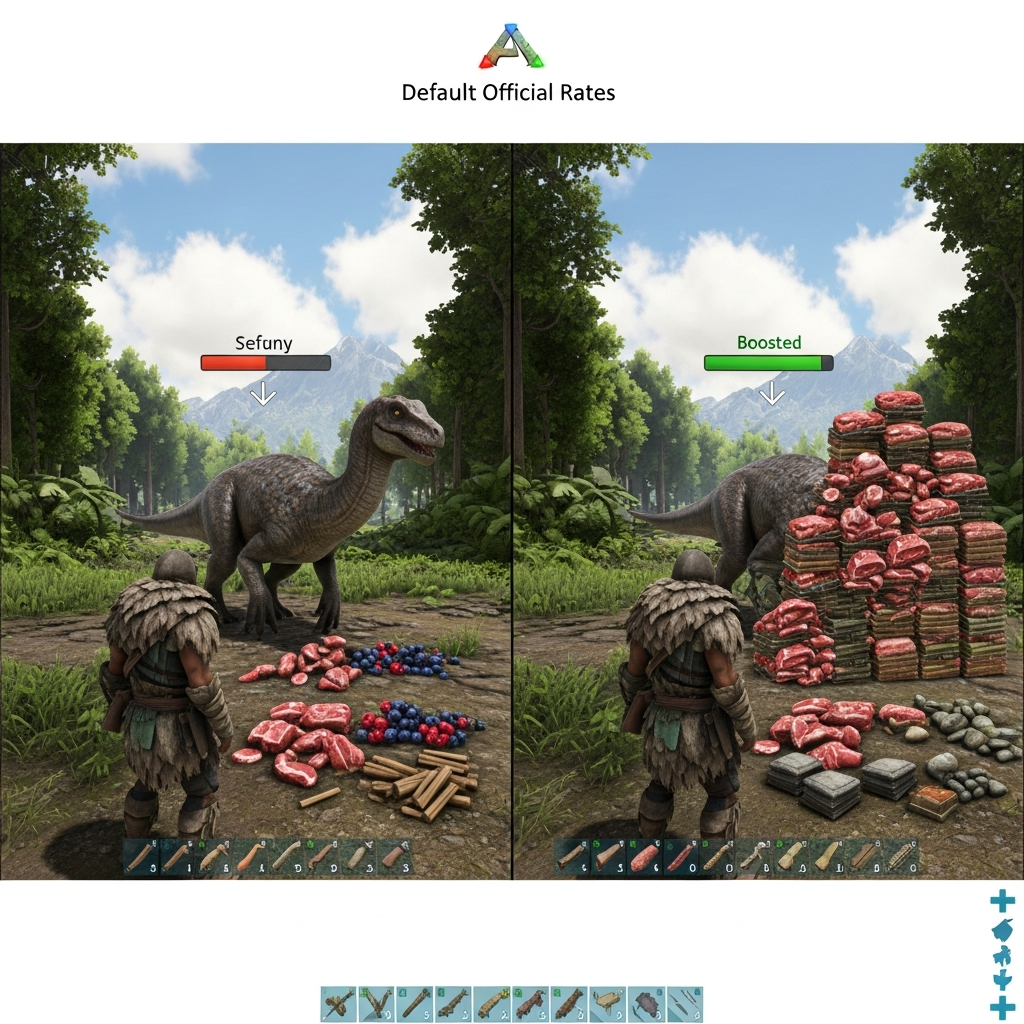
| Boosted (10–20×) | 8 cores / 4.5 GHz | 64 GB | 40 |
| Extreme (50×+) | 12+ cores / 5.0 GHz | 128 GB | 30 |
The AMD Ryzen 9 7950X3D with its 16 cores, 32 threads, and 5 GHz+ boost clock handles even extreme configurations without thermal throttling. Its 3D V-Cache technology reduces memory latency—critical when ARK’s Unreal Engine queries thousands of dino stats and structure placements per tick. Combined with DDR5 ECC RAM, error correction ensures data integrity during intensive save operations triggered by rapid breeding or mass harvesting.
Storage Considerations
ARK generates 50–200 MB savefiles on vanilla rates. Extreme rates with accelerated breeding can balloon saves to 500 MB+ due to increased dino populations. NVMe SSD storage is non-negotiable for servers above 5× rates—mechanical HDDs introduce 5–15 second save stutters that disconnect players. NVMe drives complete saves in under 2 seconds, maintaining smooth gameplay even during automated world-save intervals.
Network Bandwidth and Anti-DDoS
High rates attract larger player bases and, unfortunately, more DDoS attacks. A 1 Gbps network connection with Game Anti-DDoS protection filters malicious traffic before it reaches your ARK instance. When configuring rates for public servers, ensure your host provides Layer 4 and Layer 7 protection—Nexus Games infrastructure includes enterprise-grade DDoS mitigation capable of absorbing 500+ Gbps attacks without affecting legitimate player connections.
Game.ini Advanced Rate Configuration
While GameUserSettings.ini handles broad multipliers, Game.ini allows surgical precision. To configure ARK rates for specific creatures, stats, or items, you’ll edit override arrays within Game.ini’s [/Script/ShooterGame.ShooterGameMode] section.
Per-Dino Stat Multipliers
Override individual creature stats without affecting global rates. Example: boost Giganotosaurus base health while keeping all other dinos standard.
[/Script/ShooterGame.ShooterGameMode]
ConfigOverrideItemMaxQuantity=(ItemClassString="PrimalItemConsumable_RawMeat_C",Quantity=(MaxItemQuantity=100,bIgnoreMultiplier=True))
DinoClassDamageMultipliers=(ClassName="Gigant_Character_BP_C",Multiplier=0.8)
DinoClassResistanceMultipliers=(ClassName="Gigant_Character_BP_C",Multiplier=1.2)
This configuration reduces Giga damage output by 20% while increasing its damage resistance by 20%—useful for balancing overpowered tames in modded environments. The ClassName parameter references ARK’s internal blueprint names, found via the official ARK wiki.
Custom Harvest Component
Override resource yields for specific harvestable types:
HarvestResourceItemAmountClassMultipliers=(ClassName="PrimalItemResource_Stone_C",Multiplier=5.0)
HarvestResourceItemAmountClassMultipliers=(ClassName="PrimalItemResource_Metal_C",Multiplier=3.0)
This grants 5× stone and 3× metal while leaving wood, thatch, and fiber at default rates. Essential for servers emphasizing construction over primitive gathering.
Loot Crate Quality Scaling
Increase blueprint quality and item count in supply drops and cave crates:
SupplyCrateLootQualityMultiplier=2.0
FishingLootQualityMultiplier=3.0
Combined with standard harvest rates, this creates progression pathways where players farm materials at normal speed but find high-quality blueprints more frequently—ideal for PvE servers focused on dungeon-crawling and boss fights.
Testing and Iterating Your Rate Configuration
After editing configuration files, methodical testing prevents player frustration. Spawn test dinos in creative mode, verify taming timers with a stopwatch, and cross-reference resource yields with ARK’s wiki to ensure multipliers apply correctly. Common issues when you configure ARK rates include:
- Syntax Errors: Missing commas, mismatched parentheses, or typos in parameter names cause silent failures—ARK loads defaults without error messages.
- Override Conflicts: Game.ini overrides supersede GameUserSettings.ini. If a dino isn’t taming at expected speeds, check for conflicting DinoClassTamingMultipliers.
- Caching Issues: ARK clients cache server settings. After rate changes, players may need to disconnect, restart their client, and reconnect to see updates.
Monitoring Server Health Post-Configuration
Use these metrics to validate your configuration:
- Tick Rate: Should remain 30 Hz (33 ms frame time). Drops below 20 Hz indicate CPU bottlenecks.
- RAM Usage: Monitor via Task Manager or
htop. Sudden spikes correlate with mass breeding or large tribe activity. - Save Duration: World saves should complete in under 5 seconds. Longer durations suggest storage I/O bottlenecks.
- Player Ping: Individual pings above 100 ms on a 1 Gbps connection indicate network saturation or routing issues.
Nexus Games’ control panel provides real-time graphs for CPU load, RAM usage, and network traffic, letting you correlate rate adjustments with performance impact. If your 20× breeding profile causes RAM usage to exceed 80%, scale back maturation speed or upgrade to a higher-tier plan with 64–128 GB DDR5 ECC RAM.
Community Feedback Loop
Poll your player base weekly during the first month after rate changes. Use Discord polls or in-game mods like Auction House to gather structured feedback on XP gain, taming duration, and resource availability. Successful servers iterate every 2–3 weeks, making incremental 10–20% adjustments rather than drastic overhauls that disrupt established player strategies.
Conclusion
Mastering how to configure ARK rates empowers you to craft the perfect survival experience—whether that’s a hardcore official-like challenge or a relaxed weekend playground. By methodically editing GameUserSettings.ini and Game.ini, validating changes through testing, and monitoring server performance with enterprise-grade hardware like the AMD Ryzen 9 7950X3D and DDR5 ECC RAM, you ensure smooth, lag-free gameplay at any rate profile. Remember to back up configurations before experimentation, engage your community for feedback, and scale resources as your server grows. With the right tools and knowledge, your ARK server becomes a thriving world shaped exactly to your vision.
FAQ
What’s the difference between HarvestAmountMultiplier and HarvestHealthMultiplier when configuring ARK rates?
HarvestAmountMultiplier increases resources per hit (e.g., 3.0 = triple wood per swing), while HarvestHealthMultiplier increases the “health” of harvestable nodes, requiring more hits but yielding proportionally more total resources. Using both together (like 2.0 and 2.0) gives 4× total resources while preventing instant depletion of trees and rocks, which is crucial for high-traffic farming zones.
Why do my breeding rates feel slower than expected after I configured the multipliers?
ARK uses inverse multipliers for intervals: MatingIntervalMultiplier and BabyCuddleIntervalMultiplier require lower values to speed things up (e.g., 0.5 = half the wait time), while EggHatchSpeedMultiplier and BabyMatureSpeedMultiplier use direct multipliers (e.g., 10.0 = 10× faster). Double-check you haven’t accidentally inverted these parameters—a common mistake is setting MatingIntervalMultiplier to 5.0, which actually makes breeding five times slower.
How much RAM do I need when running extreme ARK rates like 50× taming and breeding?
Extreme rates exponentially increase entity counts—rapid breeding spawns hundreds of dinos, and instant taming fills tribes with armies. For 50× rates with 30+ concurrent players, allocate at least 64 GB RAM; for 100-player clusters or modded servers, 128 GB DDR5 ECC RAM is recommended. Insufficient RAM causes save corruption, rollbacks, and server crashes during high-activity periods like tribe wars or mass breeding events.