Understanding how to optimize ARK Survival Ascended server performance is crucial for delivering a smooth, lag-free experience to your players in 2025. With Unreal Engine 5 powering this next-generation survival game, server owners face unique challenges around CPU utilization, memory management, and network stability. This comprehensive guide walks you through proven optimization strategies—from hardware selection and configuration tweaks to mod management and monitoring—ensuring your ARK Survival Ascended server runs at peak efficiency.
Why Optimizing Your ARK Survival Ascended Server Matters in 2025
ARK Survival Ascended represents a significant leap forward from its predecessor, ARK Survival Evolved. Built on Unreal Engine 5, the game features stunning visuals, enhanced physics, and more complex AI behaviors—all of which demand considerably more server resources. Without proper optimization, even well-funded servers can suffer from tick-rate drops, rubber-banding, and crashes during peak hours.
Players expect instant responsiveness when taming creatures, building structures, or engaging in PvP combat. A poorly optimized server creates frustration, drives players away, and damages your community’s reputation. Conversely, a finely tuned server attracts loyal players, supports larger populations, and enables complex mods without performance degradation.
The foundation of any optimized ARK Survival Ascended server starts with powerful hardware. At Nexus Games, our ARK hosting leverages the AMD Ryzen 9 7950X3D processor—a 16-core, 32-thread CPU running above 5 GHz with 3D V-Cache technology specifically designed for gaming workloads. This architecture dramatically reduces memory latency, which is critical for ARK’s real-time world simulation.
Paired with DDR5 ECC RAM (32–128 GB depending on your player count and mod load), you eliminate memory bottlenecks that cause stuttering. ECC (Error-Correcting Code) memory prevents data corruption during long server uptimes—essential for persistent worlds where a single memory error can corrupt save files. Finally, NVMe SSD storage ensures lightning-fast map loads, save operations, and mod asset streaming, while our 1 Gbps network guarantees low-latency connections worldwide.

Essential Server Configuration for Maximum ARK Survival Ascended Performance
Core INI File Tweaks
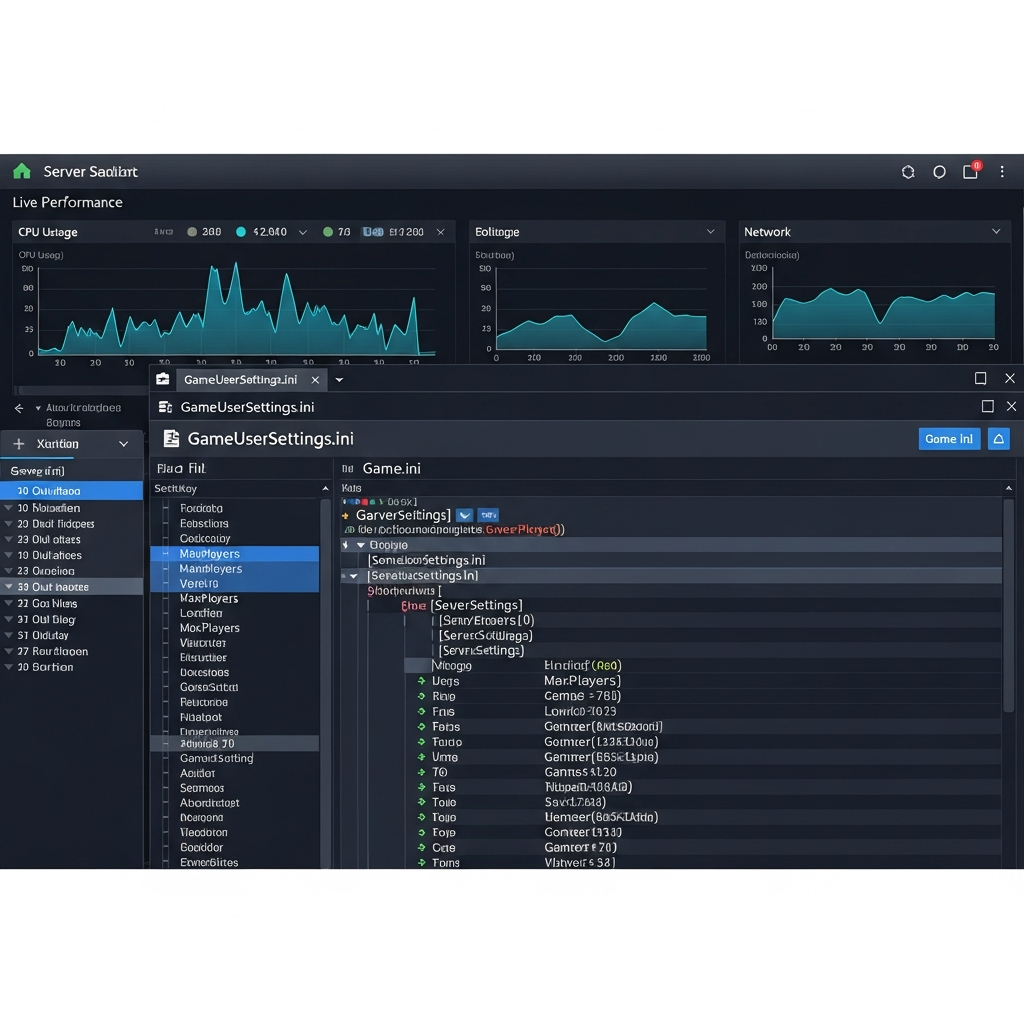
ARK Survival Ascended’s behavior is controlled primarily through two configuration files: GameUserSettings.ini and Game.ini. Strategic edits to these files can yield dramatic performance improvements without compromising gameplay quality.
Start by opening GameUserSettings.ini located in your server’s ShooterGame/Saved/Config/WindowsServer/ directory. Under the [ServerSettings] section, add or modify these critical parameters:
[ServerSettings]
StructureDamageRepairCooldown=180
PvPStructureDecay=True
DisableStructurePlacementCollision=False
AllowCaveBuildingPvE=False
bDisableStructureDecayPvE=False
MaxStructuresInRange=10500
TheMaxStructuresInRange=10500
OverrideStructurePlatformPrevention=False
PerPlatformMaxStructuresMultiplier=1.0
MaxPlatformSaddleStructureLimit=50
The MaxStructuresInRange parameter is particularly important—it limits how many structures can exist within a certain radius, preventing mega-bases from crippling server performance. Setting this to 10,500 balances creative freedom with stability. For servers hosting 50+ concurrent players, consider reducing this to 8,000.
Next, control resource respawn rates to reduce computational overhead:
ResourcesRespawnPeriodMultiplier=0.5
HarvestAmountMultiplier=2.0
By doubling harvest amounts while halving respawn time, you maintain resource availability while cutting the number of active resource nodes the server must track by approximately 50%.
Advanced Game.ini Optimizations
The Game.ini file allows deeper engine-level tweaks. Add these lines to reduce AI calculation frequency without noticeably affecting gameplay:
[/Script/ShooterGame.ShooterGameMode]
bDisableDinoDecayPvE=False
bAllowUnlimitedRespecs=False
bDisablePvEGamma=False
MaxNumberOfPlayersInTribe=6
MatingIntervalMultiplier=1.0
EggHatchSpeedMultiplier=1.0
BabyMatureSpeedMultiplier=1.0
bUseSingleplayerSettings=False
Limiting tribe sizes reduces the complexity of permission calculations and structure ownership checks. For role-play servers, smaller tribes (4–6 members) also encourage more diverse community interactions.
To optimize creature AI without sacrificing challenge, adjust these settings:
[/Script/Engine.GameSession]
MaxPlayers=70

[/Script/ShooterGame.ShooterGameMode]
NPCReplacements=(FromClassName="Dodo_Character_BP_C",ToClassName="")
DinoCountMultiplier=0.8
Reducing the DinoCountMultiplier to 0.8 decreases wild creature spawns by 20%, significantly lowering CPU load during pathfinding calculations while maintaining a populated world. The NPCReplacements line can be used to remove performance-intensive creatures (like the Dodo example) or replace them with less demanding alternatives.
Memory Allocation and Process Priority
ARK Survival Ascended can consume 12–20 GB of RAM depending on map size, player count, and active mods. On a Windows Server environment, force the server process to use large memory pages for better allocation efficiency. Add this launch parameter:
-UseLargePages -NoHangDetection
The -UseLargePages flag reduces translation lookaside buffer (TLB) misses, improving memory access speed by up to 15%. -NoHangDetection prevents false-positive crash reports during intensive save operations.
Additionally, set the ARK server process to High priority in Windows Task Manager or use this command in your startup script:
start /high "ARK Server" ArkAscendedServer.exe TheIsland_WP?listen?SessionName=MyServer -UseLargePages -NoHangDetection
This ensures the server receives preferential CPU scheduling, reducing latency spikes during background OS tasks.
Mod Management and CurseForge Integration Best Practices
Mods dramatically expand ARK Survival Ascended’s possibilities, but poorly optimized or conflicting mods are the number-one cause of server instability. At Nexus Games, our panel provides one-click installation of CurseForge mods, streamlining the process while ensuring version compatibility.
Selecting Performance-Friendly Mods
Not all mods are created equal. Mods that add new creatures with complex AI (custom pathfinding, unique attack patterns) consume significantly more CPU than simple quality-of-life mods like UI enhancements or stack size increases. Before installing a mod, check its CurseForge page for:
- Update frequency: Mods actively maintained for ARK Survival Ascended (not abandoned ASE ports) are better optimized.
- User reviews mentioning performance: Look for feedback about server tick-rate or memory usage.
- Compatibility notes: Ensure the mod doesn’t conflict with your existing mod stack.
- File size: Mods over 500 MB often include high-resolution assets that strain memory and load times.
Prioritize server-side mods (those that don’t require client downloads) when possible. Examples include automated backup systems, advanced admin tools, and server-side statistics trackers. These add functionality without impacting player connection times or bandwidth.
Load Order and Conflict Resolution
Mod load order matters critically in ARK Survival Ascended. Mods are processed sequentially, and later mods can override earlier ones. Follow this general hierarchy:
- Core framework mods (e.g., ASA Additions, core libraries)
- Map extensions (custom biomes, cave additions)
- Creature mods (new dinos, AI overhauls)
- Item/crafting mods (new gear, recipes)
- UI/QoL mods (interfaces, stack mods)
- Admin tools (last to ensure they can interact with all other mods)
Using the Nexus Games panel, you can drag-and-drop mods to reorder them visually. After any load-order change, perform a full server restart and monitor the first 30 minutes of uptime for errors in the server log (ShooterGame.log).
To detect conflicts, temporarily disable half your mods, restart, and test. If the issue persists, disable half of the remaining mods. This binary-search approach quickly isolates problematic mods. Common conflicts occur between mods that modify the same engrams, creature spawns, or UI elements.
Regular Mod Updates and Pruning
Set a maintenance schedule (weekly for active servers) to update mods via CurseForge integration. Outdated mods can cause crashes after ARK Survival Ascended patches. The Nexus Games panel automatically flags outdated mods and allows batch updating.
Every 2–3 months, audit your mod list. Remove mods with fewer than 10 active users or those that haven’t been updated in 60+ days. Archive your server files before bulk mod removal to enable easy rollback if needed.
Network Optimization and Anti-DDoS Protection
Even a perfectly configured server fails if network issues prevent players from connecting or cause latency spikes. ARK Survival Ascended’s real-time multiplayer requires consistent sub-50ms ping for responsive combat and building.
Bandwidth Allocation and QoS
Each ARK Survival Ascended player consumes approximately 100–150 Kbps of bandwidth during normal gameplay, spiking to 300 Kbps during high-action moments (large-scale PvP, multiple players in one area). For a 50-player server, budget at least 20 Mbps symmetrical bandwidth with burst capacity to 50 Mbps.
Our 1 Gbps network infrastructure at Nexus Games eliminates bandwidth as a bottleneck, but you should still configure Quality of Service (QoS) rules on your server’s network interface. Prioritize ARK traffic (UDP ports 7777–7778 by default) over background tasks like automatic backups or web-based admin panels.
DDoS Mitigation Strategies
Popular ARK servers become targets for distributed denial-of-service attacks from rival communities or disgruntled players. Basic firewall rules are insufficient against modern DDoS vectors.
Nexus Games includes game-specific Anti-DDoS protection that filters malicious traffic before it reaches your server. Our system uses deep packet inspection to differentiate legitimate ARK connection attempts from spoofed UDP floods or amplification attacks. During a DDoS event, legitimate players experience zero downtime while attack traffic is silently dropped.
Additionally, implement IP whitelisting for admin accounts. Add these lines to GameUserSettings.ini:
[ServerSettings]
ServerAdminPassword=YourSecurePassword
AllowThirdPersonPlayer=True
Never share your admin password publicly. For added security, require admins to connect via a VPN endpoint before allowing RCON (Remote Console) access.
Ping Optimization for Global Players
ARK Survival Ascended uses client-side prediction to mask latency, but players with 150+ ms ping still experience noticeable delays. If your community spans multiple continents, consider these strategies:
- Regional clustering: Host separate servers in North America, Europe, and Asia-Pacific, allowing players to transfer characters between them.
- Sub-server routing: Use anycast networking (included with Nexus Games hosting) to route players to the geographically nearest server node automatically.
- Tick-rate adjustment: Lower the server tick-rate from 60 Hz to 30 Hz for high-latency players, reducing bandwidth without significantly affecting gameplay feel.
Monitor your server’s average ping using tools like ARK Server Manager or the built-in Nexus Games dashboard. If median ping exceeds 80 ms, investigate routing issues or consider relocating the server to a more central data center.
Monitoring, Maintenance, and Proactive Performance Management
Optimization is not a one-time task—it’s an ongoing process. Implementing robust monitoring and maintenance routines prevents small issues from escalating into server-wide crashes.
Real-Time Performance Monitoring
Deploy a monitoring stack that tracks key metrics:
- CPU utilization per core: ARK’s main simulation thread should stay below 85% on a single core.
- RAM usage and swap activity: Frequent swapping indicates insufficient memory allocation.
- Disk I/O wait times: NVMe SSDs should maintain sub-5ms read/write latency.
- Network throughput and packet loss: Loss above 0.5% degrades player experience.
- Server tick rate: Should remain stable at target (30 or 60 Hz).
The Nexus Games panel provides built-in graphs for CPU, RAM, and network metrics with 5-minute granularity. For deeper analysis, integrate external tools like Prometheus with Grafana dashboards, scraping metrics from ARK’s RCON interface.
Automated Backup and Rollback Systems
Corrupted save files are the nightmare scenario for any ARK server owner. Implement a 3-2-1 backup strategy:
- 3 copies: Production server, local backup, off-site backup.
- 2 media types: SSD (for fast restores) and cloud storage (for disaster recovery).
- 1 off-site location: Protects against data-center failures.
Configure hourly incremental backups of the ShooterGame/Saved directory, with full backups daily. The Nexus Games panel automates this process, storing up to 30 days of backups with one-click restoration. Test your restore process monthly—verify that backup files actually load and that player inventories/structures are intact.
Scheduled Restarts and Cache Clearing
Even well-optimized ARK servers suffer from memory leaks and cache bloat after 48–72 hours of uptime. Schedule automatic restarts during off-peak hours (e.g., 4 AM server time) using the Nexus Games task scheduler. Before restart, broadcast warnings at 30, 15, 5, and 1 minute using the RCON command:
broadcast "Server restarting in X minutes for optimization. Please find a safe location."
After restart, the server clears accumulated memory leaks and rebuilds spatial partitioning structures, often improving tick-rate by 10–15%.
Community Feedback Loops
Your players experience performance issues before your monitoring tools detect them. Establish a Discord channel or in-game feedback system where players can report lag spikes, rubber-banding, or crashes. Correlate player reports with server metrics to identify patterns—for example, lag consistently occurring at 8 PM might indicate player-count thresholds triggering performance degradation.
Publish a monthly “Server Health Report” summarizing uptime, average tick-rate, resolved issues, and planned optimizations. Transparency builds community trust and encourages players to report problems constructively rather than simply leaving.
In conclusion, optimizing your ARK Survival Ascended server in 2025 requires a holistic approach combining top-tier hardware, meticulous configuration, intelligent mod management, robust network protection, and proactive monitoring. By implementing the strategies outlined in this guide—from leveraging the AMD Ryzen 9 7950X3D’s 3D V-Cache architecture to fine-tuning INI files and establishing automated backup routines—you’ll deliver a premium gameplay experience that keeps your community engaged and growing. The investment in optimization pays dividends through higher player retention, positive word-of-mouth, and the ability to scale your server as your community expands.
FAQ
How much RAM do I need to optimize an ARK Survival Ascended server for 50 concurrent players?
For 50 concurrent players running a vanilla ARK Survival Ascended server, allocate at least 32 GB of DDR5 ECC RAM. If you plan to use 5–10 mods, increase this to 64 GB. Heavily modded servers (15+ mods or total conversion mods) benefit from 96–128 GB. The AMD Ryzen 9 7950X3D paired with DDR5 ECC at Nexus Games ensures optimal memory bandwidth and error correction for stable long-term operation.
What’s the best way to reduce lag spikes when multiple players build in the same area?
Limit structures per area using the MaxStructuresInRange parameter (set to 8,000–10,500 depending on server capacity). Additionally, enable OverrideStructurePlatformPrevention=True to reduce collision-checking overhead, and lower MaxPlatformSaddleStructureLimit to 50 to prevent platform-saddle bases from overwhelming the server. Schedule regular restarts every 48 hours to clear accumulated physics calculations.
How do I identify which mod is causing server crashes after updates?
Use a binary-search approach: disable half your mods, restart the server, and test for 30 minutes. If crashes persist, the issue is in the active half; if not, re-enable half the disabled mods. Repeat until you isolate the problematic mod. Check ShooterGame.log for error messages referencing specific mod IDs. The Nexus Games panel’s CurseForge integration automatically flags outdated or incompatible mods, simplifying troubleshooting.